Wrap's workspace settings
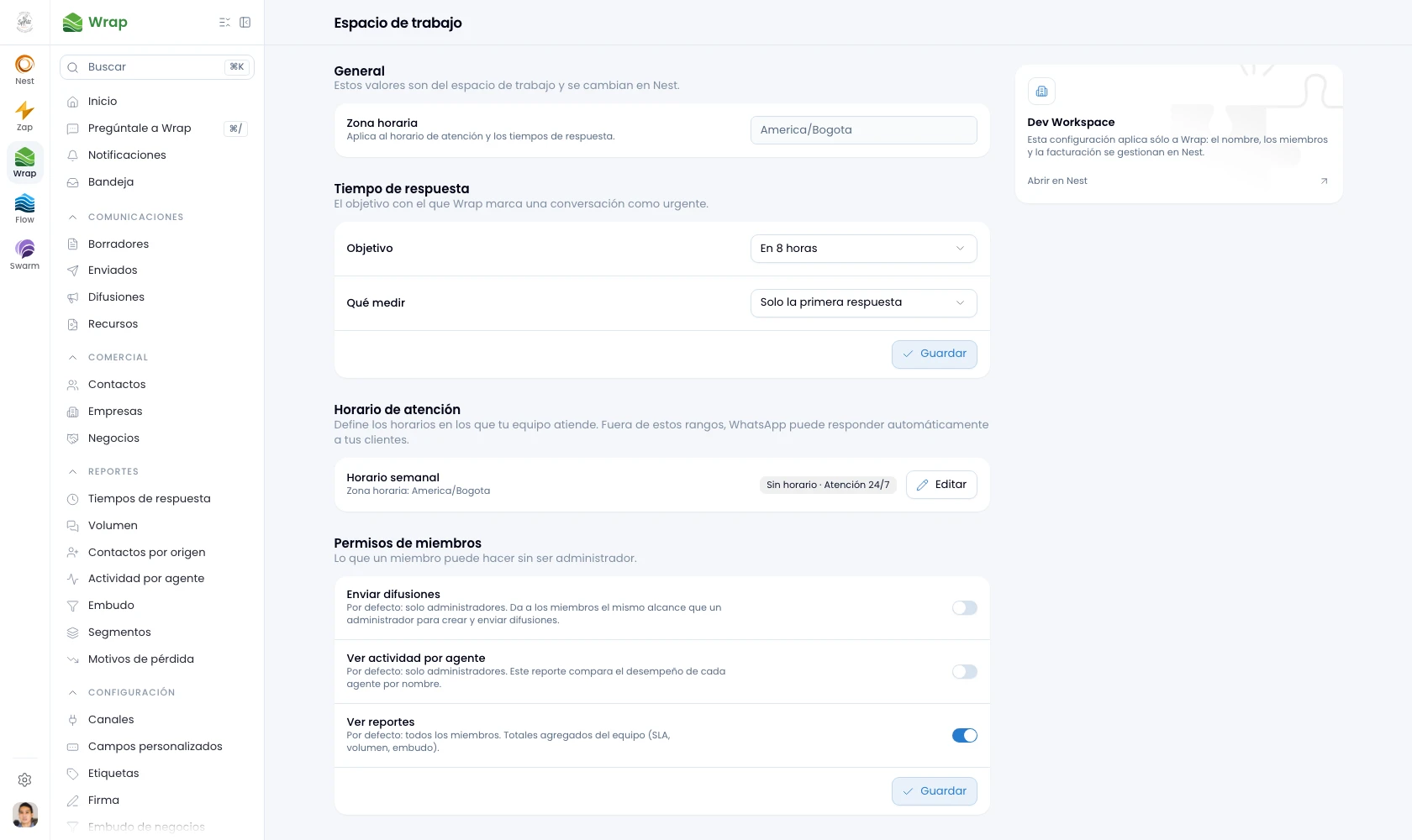
Set the business hours, the response target, the permissions and how the channels behave across all of Wrap.
Who can use this? Wrap admins.
Set how Wrap works across the whole workspace from one place: hours, response target, permissions and channels.
General
Change the workspace's time zone in Nest. Wrap uses it for business hours and the response target.
Response time
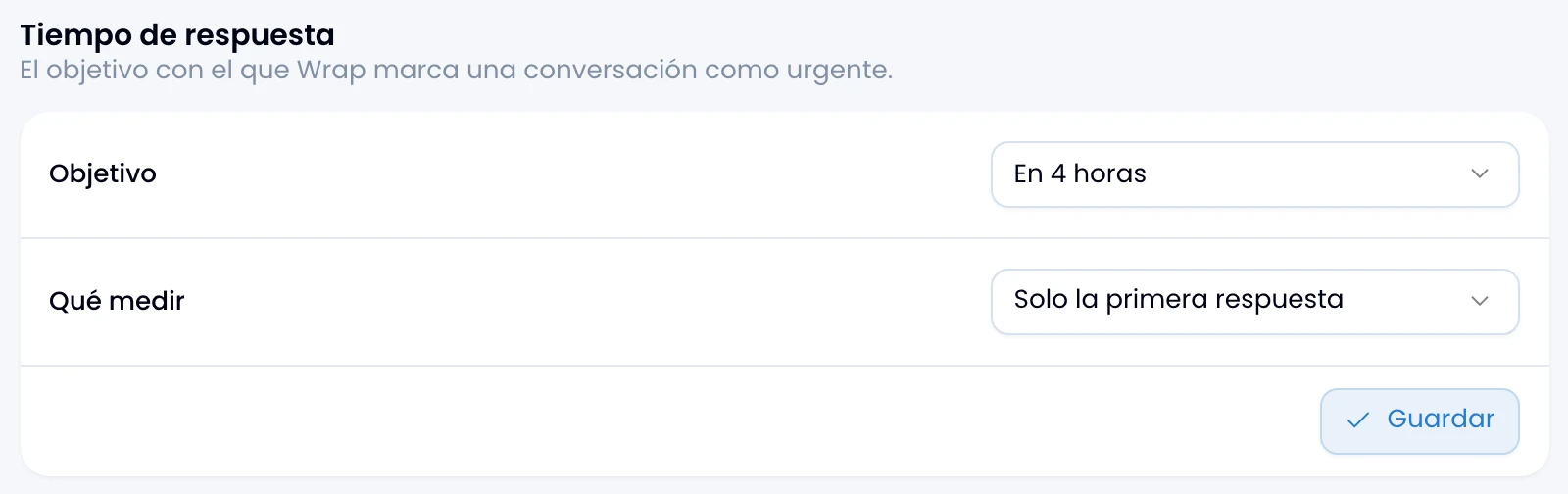
Set your team's response target. Then choose what the clock measures: First reply only or Every reply to a message. See The response target.
Business hours
Set the days and times your team answers. See Business hours.
Member permissions
Choose the three things a member can do without being an admin. See Member permissions.
Turn on Send read receipts and the customer sees the two blue ticks when somebody on the team opens their message.
That way the customer knows you read their message, and notices if the reply takes a while. Turn them off to remove both signals.
Artificial intelligence
Turn on Transcribe voice notes on arrival and Wrap turns every inbound voice note into text. If you leave it off, each note shows a button to transcribe it on demand.
Transcription spends credits from the workspace pool.
Suppressed emails
Check the addresses Wrap stopped sending to after a hard bounce or a spam complaint. See Email.
Platform settings
Edit the workspace name, logo, base currency and time zone in Nest. See Workspace settings.