The composer
Replying, attaching, inserting templates and assets, signing, and scheduling.
Write your reply at the foot of the conversation and send it with Ctrl+Enter (Cmd+Enter on a Mac). Plain Enter makes a new line.
Write as long a message as you need: the composer grows with it up to a height cap. Past that cap, the text scrolls inside the box and the send controls stay put.

Attaching
Attach from three sources, all under the same clip:
- A file from your machine: the ceiling depends on the type (10 MB for an image, 100 MB for a video, 25 MB for a PDF or anything else), and Wrap tells you the limit that applies before uploading anything. See Assets.
- A team asset: something from the asset library (catalogues, PDFs, images you send often). See Assets.
- A Flow quote: the PDF of one of the customer's open quotations. One per message.
You can also drag files onto the conversation.
Quotes, in detail
Pick from that customer's open quotations in Flow, with their number, their value and when they expire.
If none come up, it is one of two causes:
- The contact is not linked to a Flow partner. Link them from their record. See Flow links.
- The customer has no open quotations. Check them in Flow.
Wrap tells you on screen which of the two it is.
When you send the message, Flow marks that quotation as sent, with nothing else for you to update.
Voice notes
Record a voice note and send it on a WhatsApp or Instagram channel. If your browser cannot record in a supported format, Wrap tells you. It also tells you when the recording was too short.
Wrap transcribes inbound voice notes to text. Your workspace picks between transcribing them on arrival or on demand, with a button on each note.
Saved replies
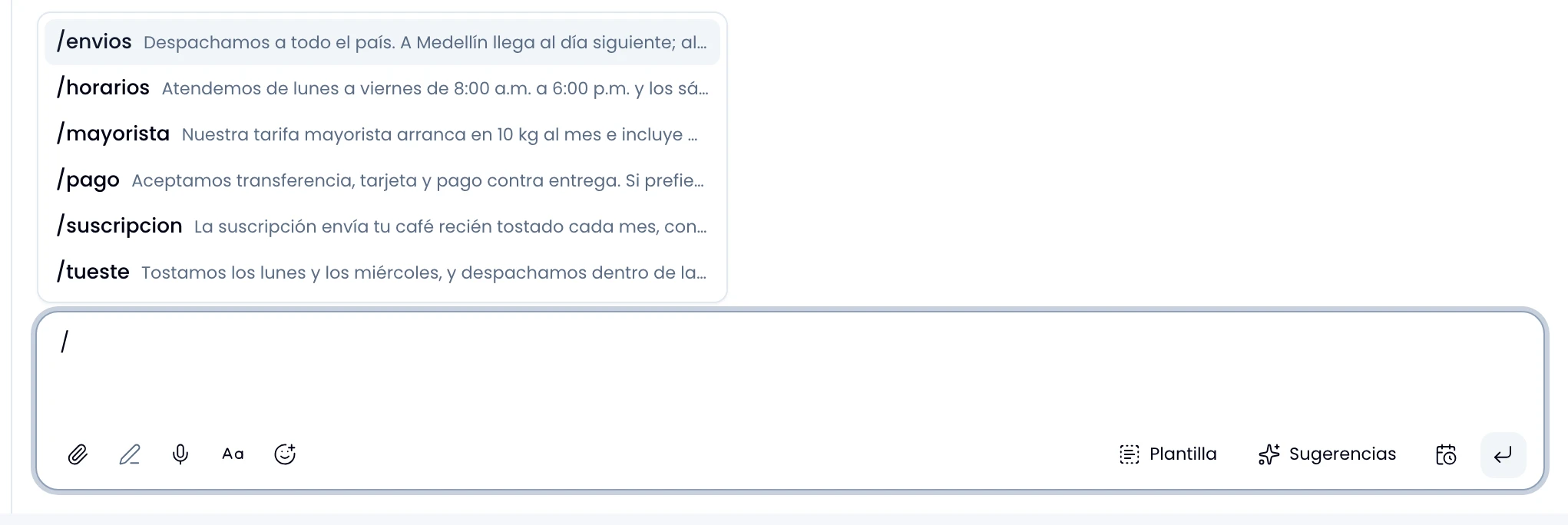
Press / and the list of shortcuts appears; type to filter it and pick one with Enter or a click: the whole text lands in its place. See Saved replies.
It works the same in the plain field, in the formatting editor (the Aa button) and on the new-message screen.
Rich text and emoji
Press Aa to move from the plain field to the formatting editor, and back whenever you like. It starts on for email and web forms, and off for WhatsApp, where the customer would see barely a couple of markers.
Pick emoji from the picker beside it. Hold Shift and it stays open so you can drop several in a row.
Signature
Turn your signature on or off message by message from the composer. If you have one set up, you see whether it goes out with this message before you send it. See Signature.
Templates and suggestions
On a WhatsApp channel, press Template and pick from the approved ones. See WhatsApp templates.
Open Suggestions to see what the assistant proposes about the customer's last message: reply drafts and data worth capturing. See Suggestions.
Replying to a message
Choose reply on a bubble and Wrap quotes that message when you send. You have what you are replying to in front of you as you write, and one click cancels it.
Send later
Schedule the message with the clock button: you pick a date and time, or one of the presets (in 1 hour, in 3 hours, tomorrow at 9). The message queues and goes out on its own.
Cancel it until it sends. If WhatsApp's 24-hour window can be closed by then, Wrap warns you before you schedule it.
When the window is closed
If the channel has a messaging window and it is closed, send an approved template instead of a free message. See Messaging windows.