The response target
Set how many hours you have to reply, and let Wrap flag what is urgent and alert you before a breach.
Who can use this? Wrap admins. If you do not see Workspace → Workspace, ask an admin to make the change.
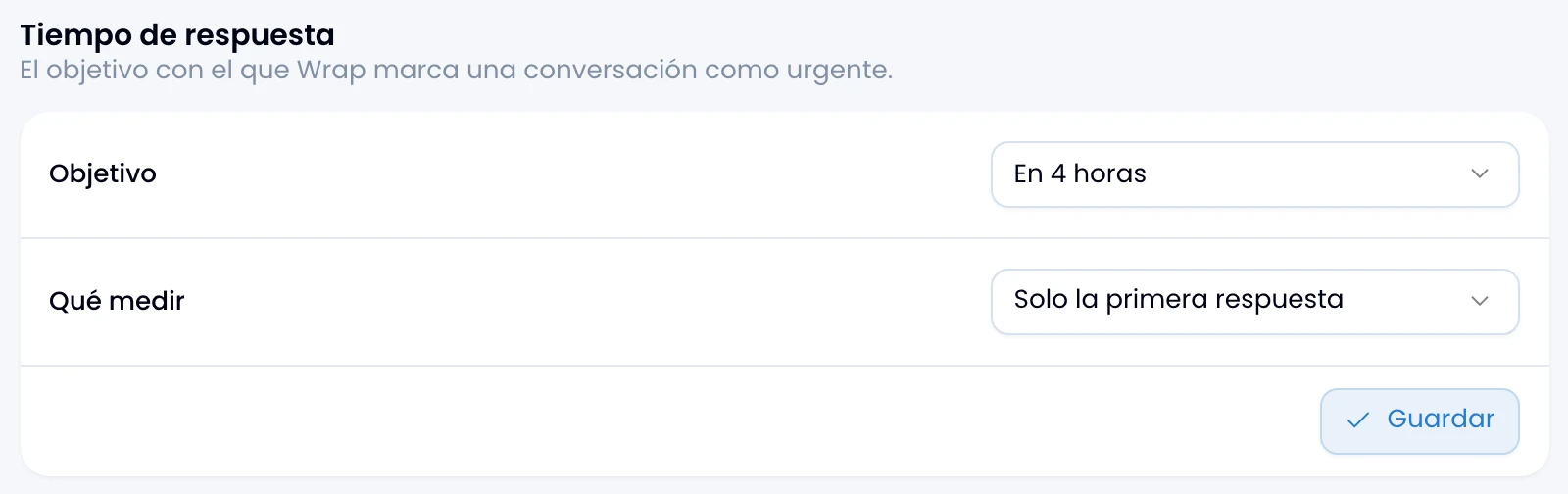
Set how many hours you have to reply under Workspace → Workspace. That one number decides three things at once: which conversations Wrap flags as urgent, which alerts go out, and what the response-times report measures.
The target
Choose the target in hours: 1, 4, 8, 24, 48 or 168. Leave it unset and Wrap turns the feature off: it flags nothing as urgent, and the response-times report tells you the target is missing.
What to measure
Choose what the clock measures, because the difference changes the number:
| Mode | What it measures |
|---|---|
| First reply only | The clock runs once per conversation, from the first unanswered message until somebody replies. |
| Every reply to a message | The clock re-arms on every customer message left unanswered. |
The first mode measures how fast you pick up something new. The second measures how fast you sustain a live conversation. In sales, choose the first; in support, the second.
When a conversation is urgent
Wrap flags a conversation as urgent when it has the last quarter of its window left, and keeps it flagged once it has passed it. Only open, non-excluded conversations with a customer message awaiting a reply enter the clock.
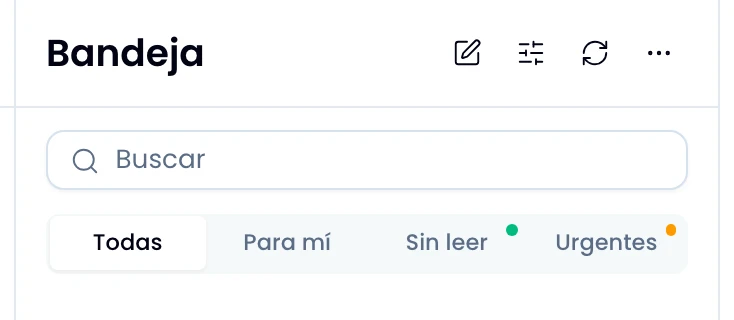
With a 4-hour target, a conversation turns urgent with an hour to go. Filter by Urgent in the inbox and you see them from that point, not only once they have breached.
The alerts
Wrap watches the conversations awaiting a reply and sends at most two alerts per wait:
- One on entering warning, in that last quarter.
- One on breaching.
Reply and Wrap resets the count. If the customer writes again later, a new wait starts and Wrap can alert again. While the same wait is still open, it does not repeat the alert.
Who gets the alert
Wrap alerts whoever has the conversation assigned. Assign it early and the alert has a clear recipient. If nobody has it, the alert follows the channel's setup. A channel restricted to a group alerts the channel's people. A channel open to admins or to the whole team alerts the workspace's admins. A breach also notifies the admins, whether or not the conversation has an owner.
Instagram's case
Check the conversation's meter: it shows Instagram's window beside your team's target. They are two different clocks: your commitment, and what Instagram lets you do. See Messaging windows.