Team view and visibility
Seeing colleagues' calendars next to yours, a detail-free "Busy" block, and controlling what they see of yours.
The Team picker
Check a colleague under Show › Team and their calendar appears next to yours on the desktop grid, in Day and Week views. The submenu carries a search field for finding them by name.
You arrive checked, with a You badge, and while you are the only one checked you stay checked. Check Everyone to compare against the whole list at once, and uncheck it to drop back to your own calendar. Swarm remembers your selection in this browser.
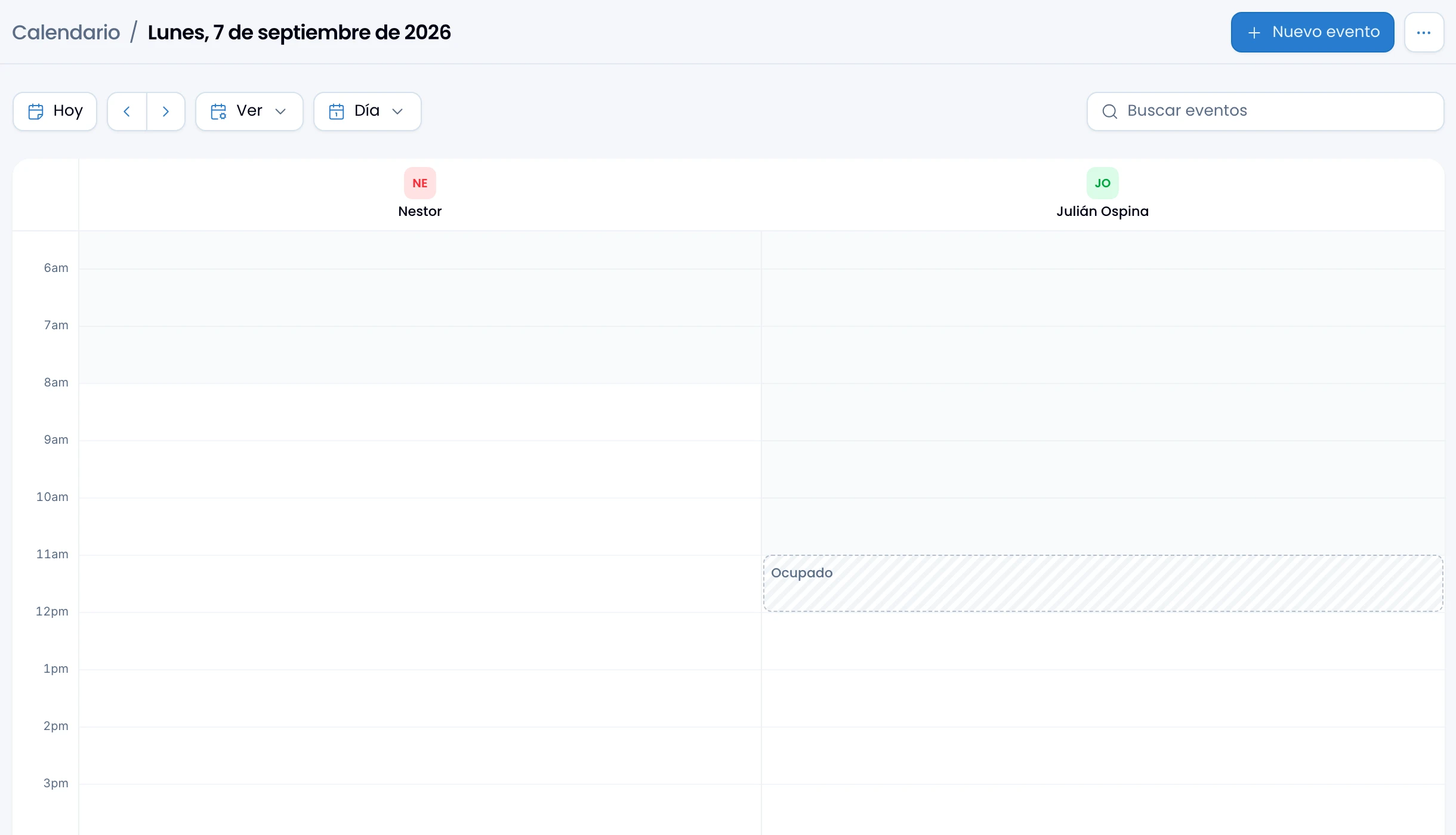
- In Day, each person gets their own column, with their avatar and name.
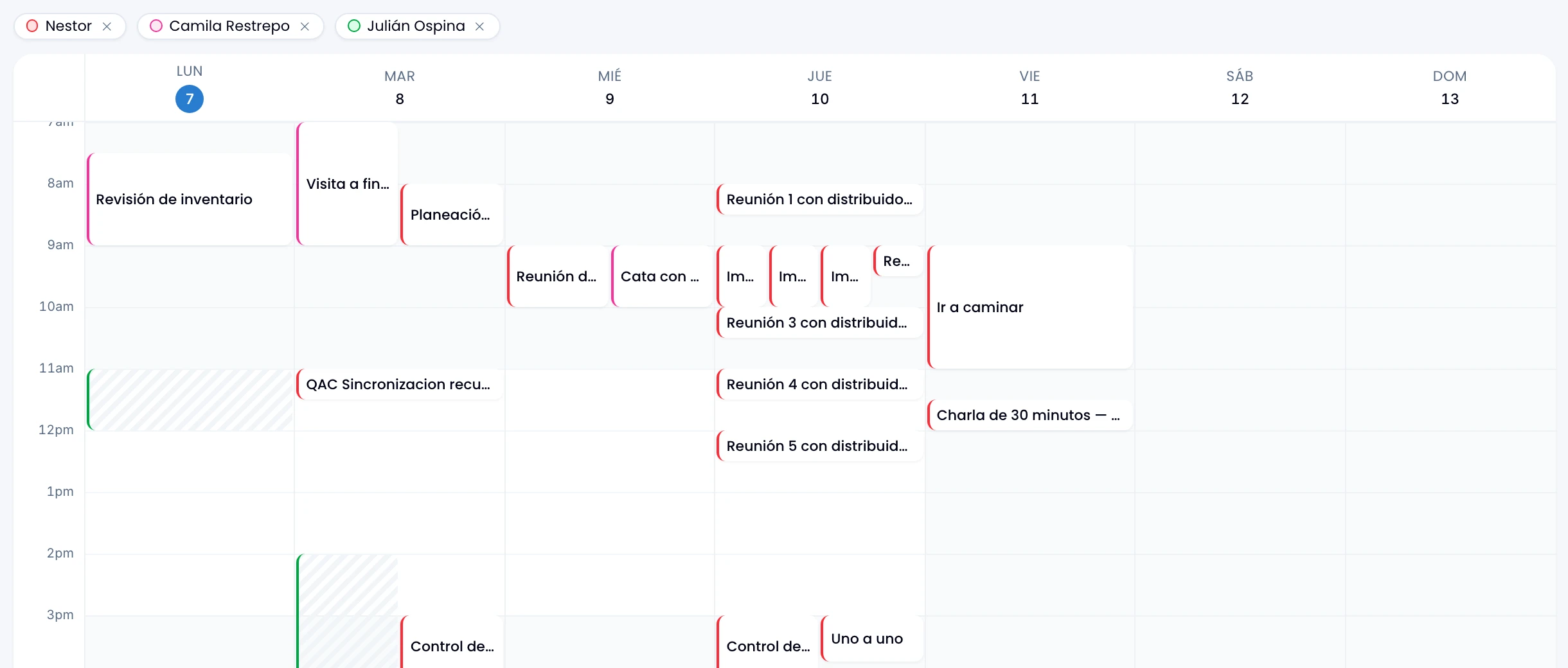
- In Week, everyone shares one grid and each person carries a colored chip. The chip's X drops them from the comparison.
With somebody else on screen, uncheck yourself to keep only theirs. To get your own calendar back, uncheck the colleagues or remove their chips in Week: your row checks itself again.
The events on that grid are read-only: you do not drag them, resize them, edit them or delete them from there, your own column included. Go back to your calendar to edit yours. What you do get to do on a block is answer an invitation: accept or decline from its card and Swarm updates the columns.
Schedule from a gap
Click an empty spot of the grid, in Day or in Week, and the editor opens a new event. It arrives with everyone on screen already invited. It starts at the quarter hour nearest the point you clicked and runs for the workspace's Default duration. Click on a block instead and you open that event rather than a new one.
Working hours on the grid
Read the dimming to place a meeting inside everyone's hours. Swarm dims the hours that fall outside working hours, and each view dims its own thing:
- In Day, each column carries its own person's hours, so a non-working day shows dimmed end to end.
- In Week, where everyone shares one column per day, Swarm dims everything outside the stretch where the selected people are working at the same time. The clear band is exactly when they can meet. If someone is off that day, or the windows never meet, the whole day is dimmed.
Schedule at any hour: the shading is only a hint. Each person sets their own in Personal › Calendar, and anyone who has not falls back to the workspace's.
A colleague on "free/busy only"
A colleague on that visibility shows you when they are busy and nothing else: a hatched grey block, with no title or location. In Day the block reads "Busy". In Week it carries no text, with a left edge in that person's color; hover it and "Busy" and their name appear.
My calendar visibility
Choose what colleagues see of your calendar under More options › My calendar visibility, in the calendar header:
- Full details: colleagues see the title, time, and location of your events.
- Free/busy only: colleagues see only a "Busy" block, with no title or details.
- Hidden: your calendar never appears in a colleague's team view.
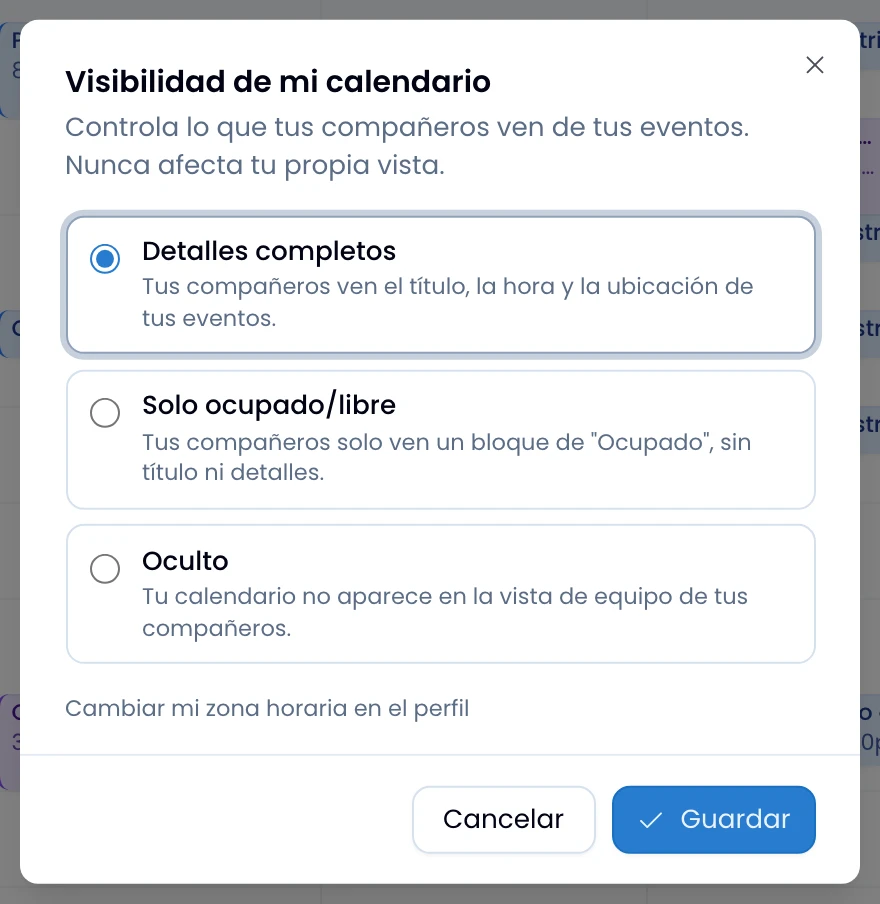
Your own view stays the same under all three: visibility governs only what other people see.
On Hidden you drop out of your colleagues' Team pickers and stay in your own, with your row and your column. Nobody can tell your hidden calendar apart from one that genuinely has nothing scheduled.
The people you invite to one of your events see that event in full, whatever your visibility. Visibility only governs what everyone you did not invite sees.