The phone app
Swarm for iPhone and iPad: the dock, tasks, calendar and notifications in the native app.
Carry your channels, your tasks and your calendar in your pocket: Swarm for iPhone and iPad is a native app on your same workspace.
The welcome screens
Walk through the three welcome screens the first time you open the app signed out: they introduce channels, tasks and the assistant. Tap Skip at the top, or "Already have an account? Sign in" at the end, and you land on the sign-in screen.
Signing in and switching workspaces
Sign in with your email and password, or with Continue with Google. If you forgot your password, use "Forgot your password?" on that same screen. If your account has two-factor verification on, Swarm asks for it as you sign in, and without the second factor at hand you can use a recovery code.
To switch workspaces, open Perfil and tap the card for the active workspace, the one with the "Cambiar de espacio" (Switch workspace) hint. The list carries every workspace you belong to, with a check mark next to the one you have open.
If you were taken out of the workspace the app had open, Swarm moves you to your default workspace and carries on there.
The dock
Move around the app with five fixed tabs, in this order: Chats, Trabajo, Calendario, Actividad and Perfil. On a phone they live in the bottom bar; on a tablet, in a fixed rail on the left.
Tap ✦ in any screen's header to open the assistant, Ask Swarm.
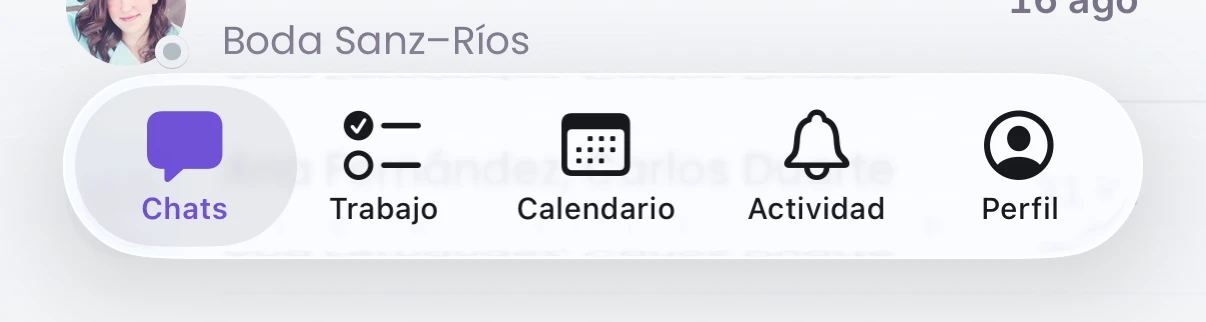
Chats
Write and reply from Chats, the tab the app opens on: channels and direct messages in one list, with a search field. Tap a photo in the row of people to message someone straight away. Inside a conversation you have threads, reactions and voice notes.
Trabajo
Go through everything assigned to you in Trabajo, grouped by project, and filter by Todas (all), Para hoy (today) and Vencidas (overdue). Tap a project's name to open its full board, with columns, search and bulk selection.
Calendario
See your week in Calendario: a strip of day pills and, below it, the agenda for the day you pick.
Actividad
Catch up in Actividad. Para ti sums up what went on while you were away. Novedades brings mentions, assignments and invitations, with a button to mark it all read. Recordatorios keeps the messages you asked to be brought back to, and when.
Perfil
Set up what is yours in Perfil: photo, name, email and the active workspace, plus theme, availability, push notifications and sign out.
Tasks on the phone
Open a project from Trabajo and you land on its board: swipe from column to column and search by title or number.
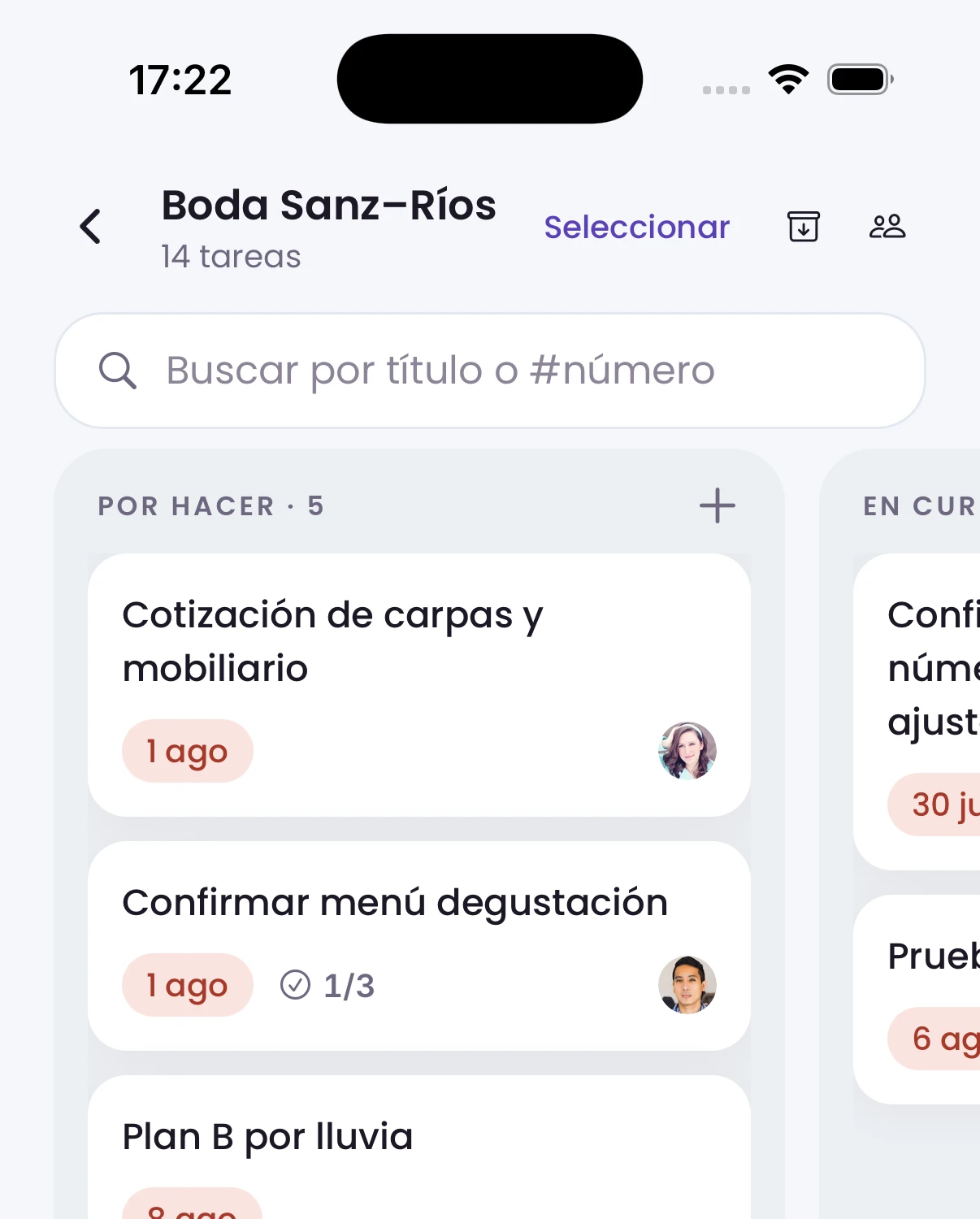
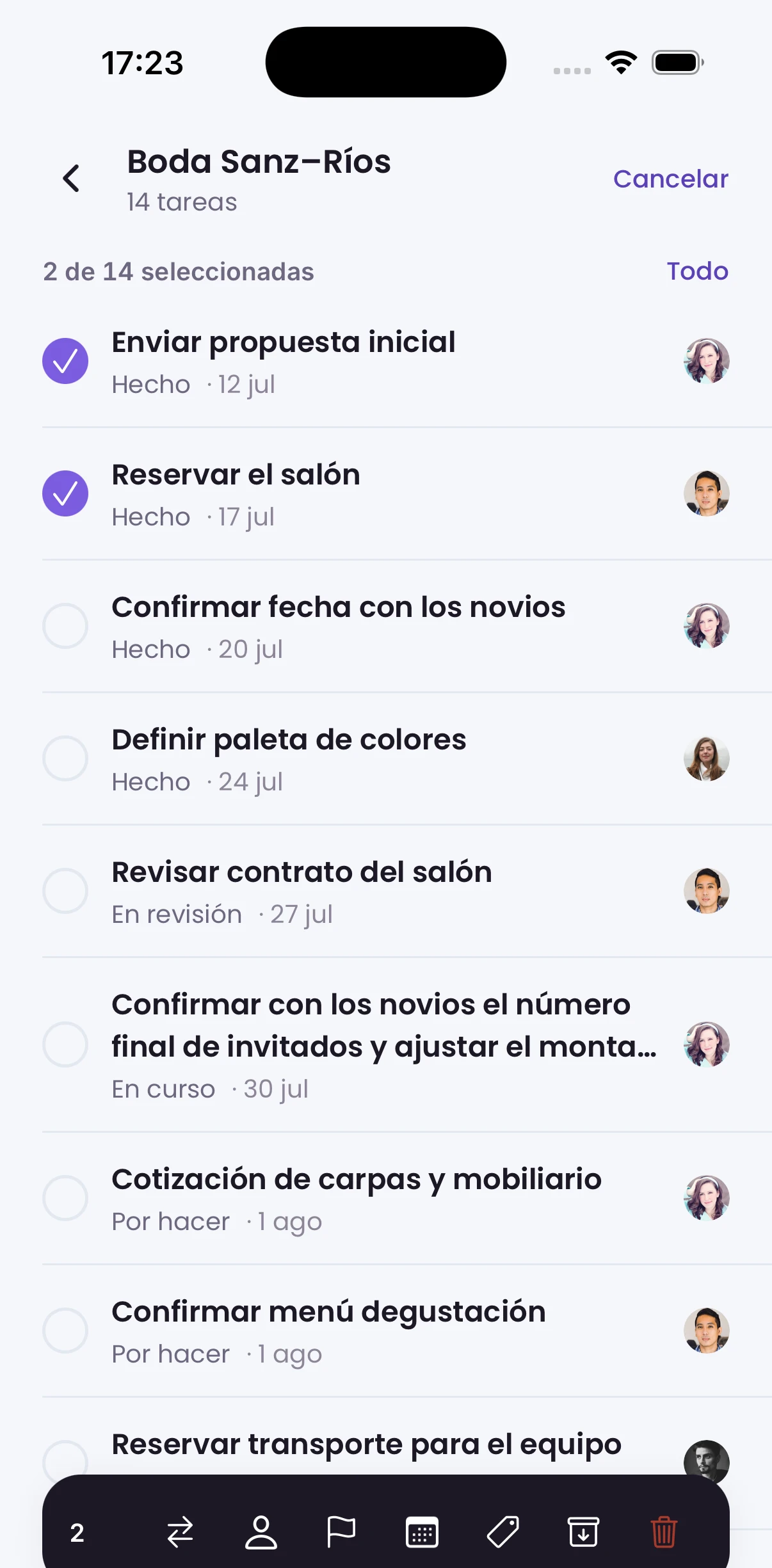
Tap Seleccionar, in the board's header, to swap the columns for a checkbox list: every active task in the project, regardless of column. Check one or more and act on them all at once: move column, assign, priority, due date, labels, archive and delete.
Inside a task, Etiquetas shows the labels it already has and opens a multi-select picker with the project's own set. If the task came from a recurring rule, Repetir carries its badges with the frequency, the days, the time and the next date, plus Pausar and Dejar de repetir. Create a new rule from the browser.
Open Tareas archivadas, in the project's menu, to Restaurar or Eliminar what you archived, row by row or in bulk with the same Seleccionar mode.
The calendar
Tap a day in the week strip and its agenda appears below, one row per event with its time. Days with something on them carry a dot. Swarm takes the time zone from your calendar settings, and if your profile has none, from the workspace.
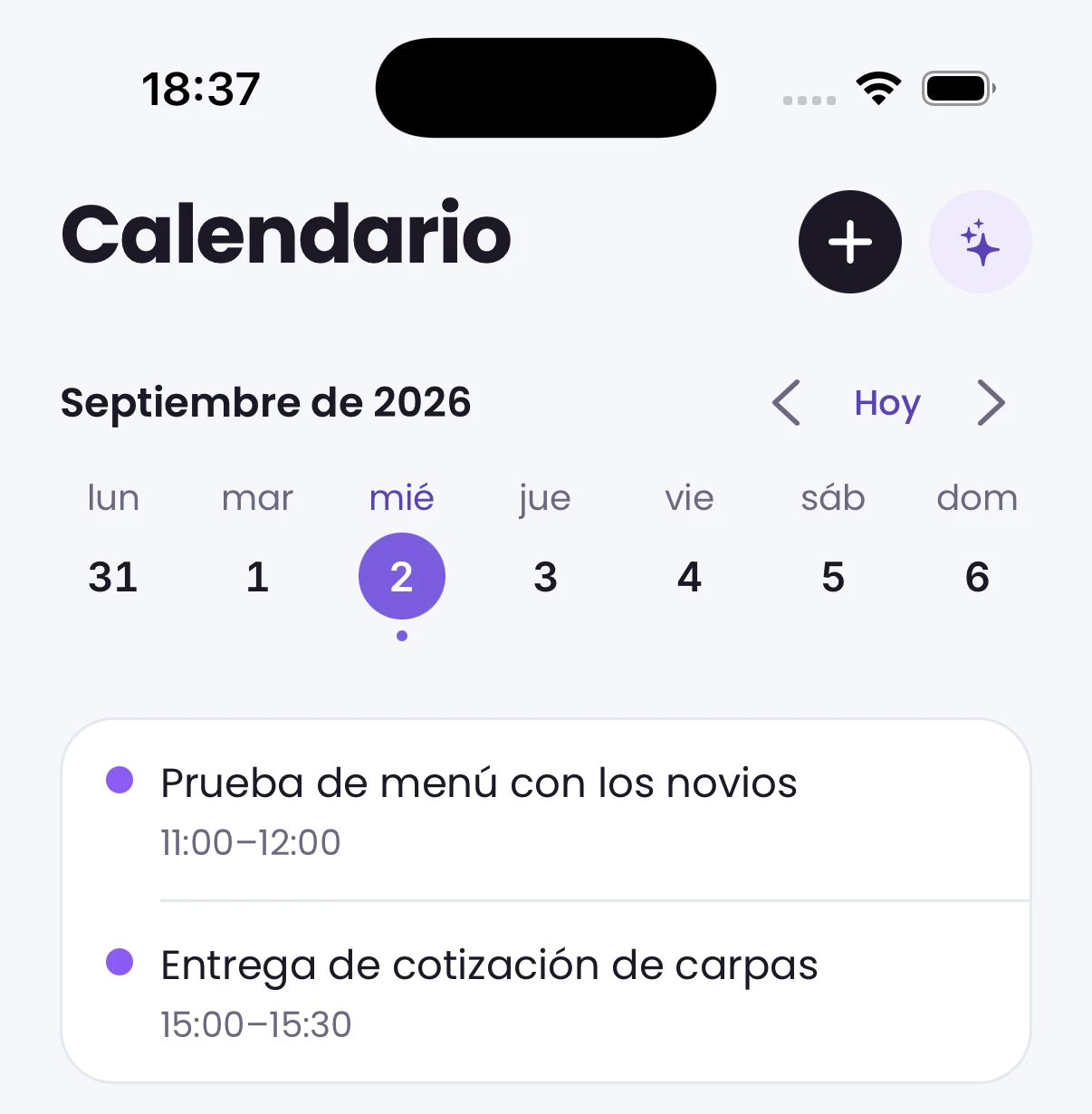
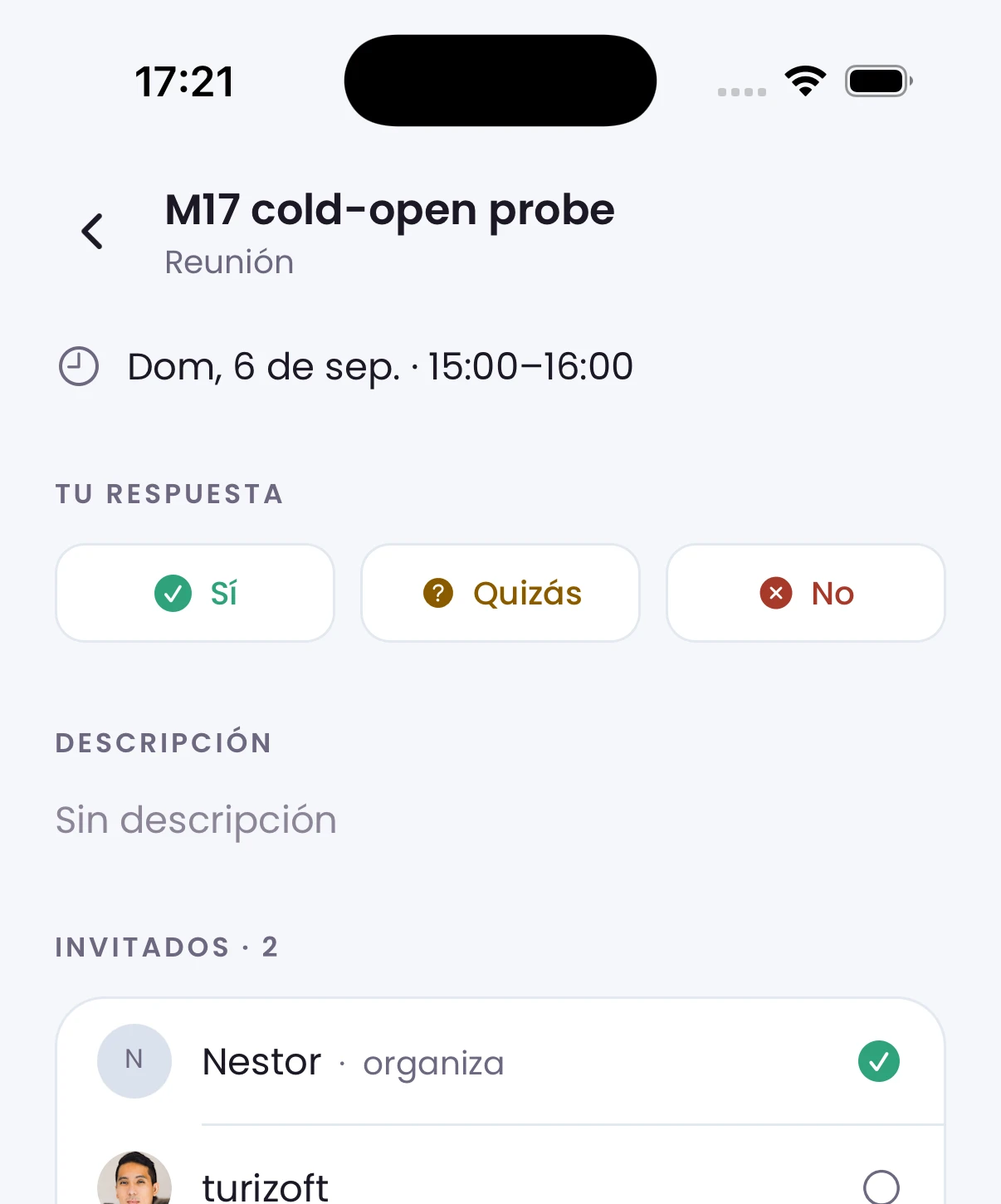
Open an event to read its time, its description and the invitee list with everyone's status. On an event you were invited to, answer Sí, Quizás or No from that same screen. If the event repeats, a read-only row carries its rule: every week, which days and at what time. On the events you organize, the header carries Editar and Eliminar, and you change the invitee list there. Your reminders you edit on any event, whoever owns it.
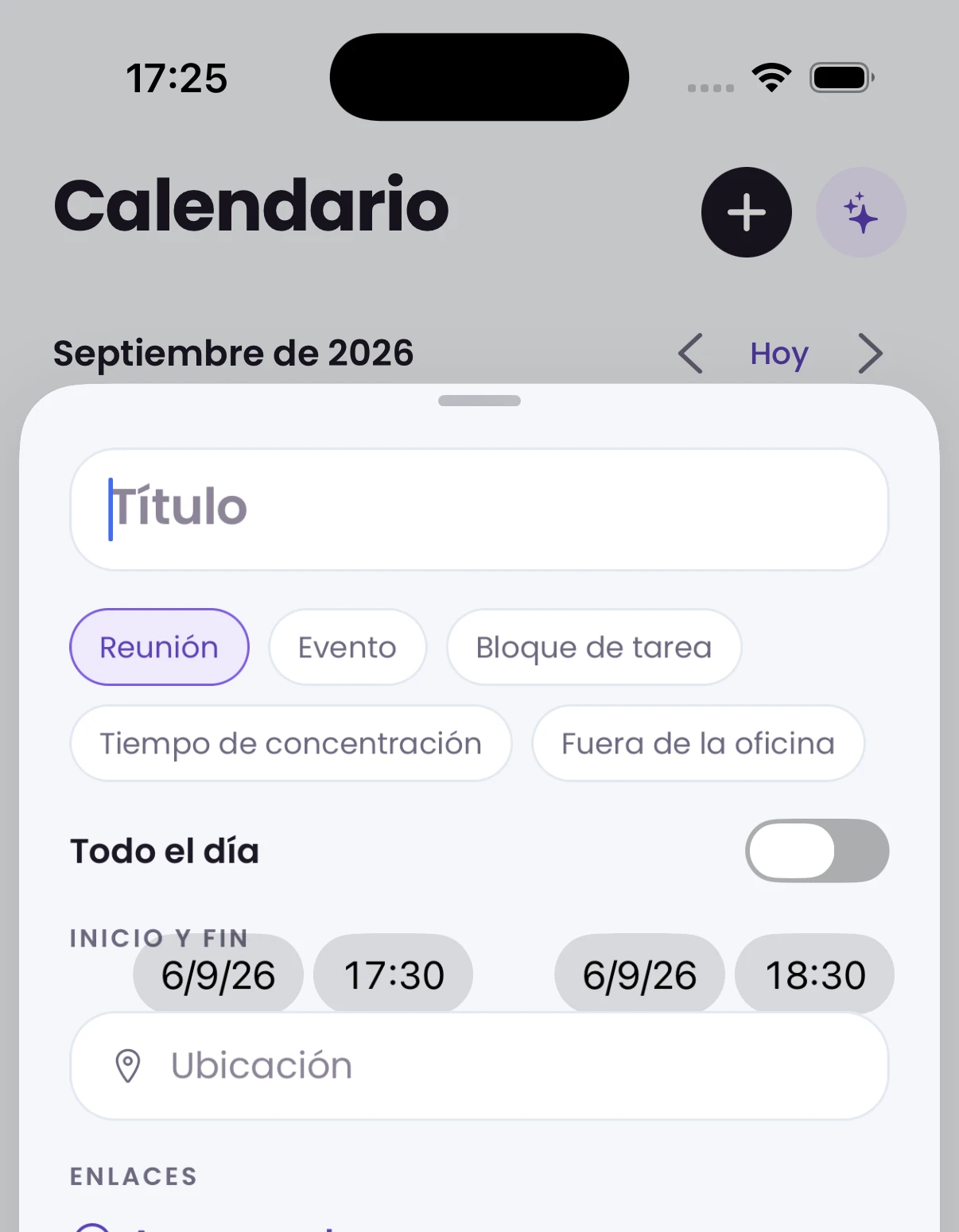
Tap + in the Calendario header to create an event, and fill the form in: a title, a type, an all-day switch, start and end, location, invitees, links and a description. The types are Reunión, Evento, Bloque de tarea, Tiempo de concentración and Fuera de la oficina. The form opens on the day you have picked in the week strip, at the next half-hour.
On one occurrence of a repeating event, change the title and the time: on save, Swarm asks the scope, Solo este evento (this one), Este y los siguientes (this and following) or Todos los eventos (all). A one-off event opens the full form.
Tap the header's date to open the full month grid, and pick a day to take the week strip and the agenda there.
Notifications and push
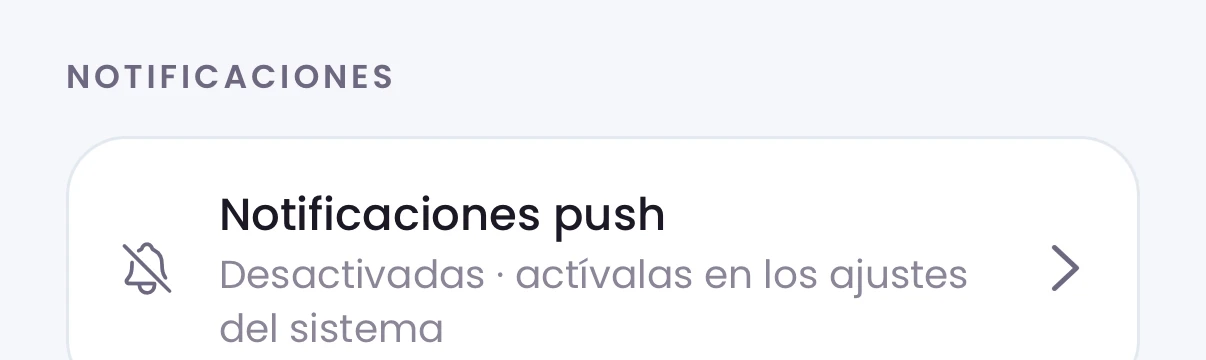
Open Perfil to see whether push notifications are on, and tap that row to turn them on in the system's own settings.
Tap a push notification and Swarm opens what it is about: the task, the message in its channel, the project, the event, or the person who mentioned you. A reminder or a booking opens the event on its day.
Tap a calendar notification in Actividad and Swarm opens the Calendario tab on today.
Offline
Read what you already visited even with no signal: it opens instantly, and Swarm catches up as soon as the connection returns. Meanwhile a "Sin conexión" (offline) banner runs across the top of the app. Signing out clears what is stored, so a phone shared by a team never shows one person someone else's conversations.
See also
- The calendar, its desktop counterpart, with all four views and keyboard shortcuts.
- The board, with the full detail on columns and archived tasks.
- Labels.
- Recurring tasks, the browser's four-step wizard.
- Guests and RSVP.
- Swarm notifications.
- My work.