Creating and editing events
Quick-create on an empty cell, the full editor, the peek preview, and dragging to move or resize.
Quick create
Click an empty grid cell in Day or Week, or drag across several, to create an event without leaving the grid. New event opens right there with the time range you marked already filled. Type the title and save it with Create event. The date or range of dates comes from what you marked and does not change there. Turn on All day and the event covers the days you marked whole, with no hours. If you click without dragging, Swarm creates a block of the workspace's default duration (Workspace › Calendar).
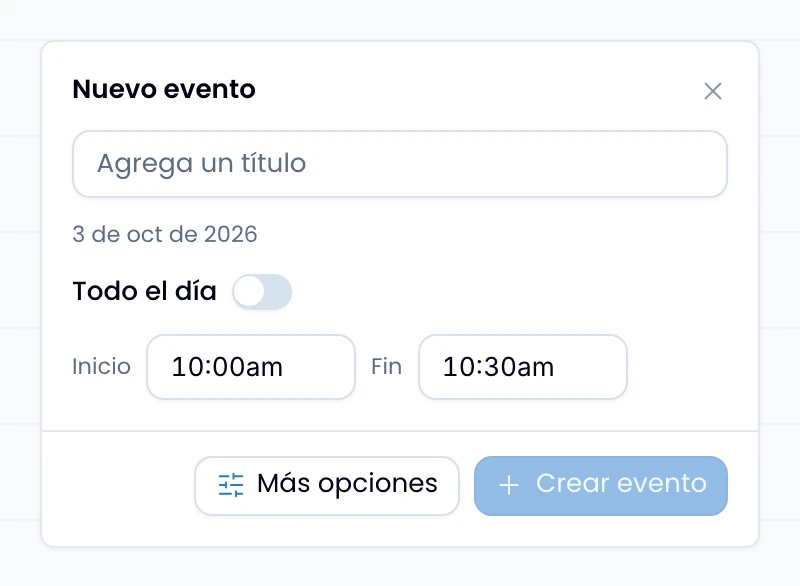
Swarm snaps the drag to 15-minute steps, so the range you release always lands on an exact quarter hour.
Click the empty space in a Month cell to open the same popover on that day, with All day already on.
Click More options to move on to the full editor when you need the type, the location, the guests or another field before saving. The title and the time range you already typed come with you.
The full editor
Open an event that already exists and you see its details as text. Click Edit, on the Details card, to turn the title, the location, the description and the links into fields; Cancel goes back. You change the type, the guests and the dates directly, without going through Edit.
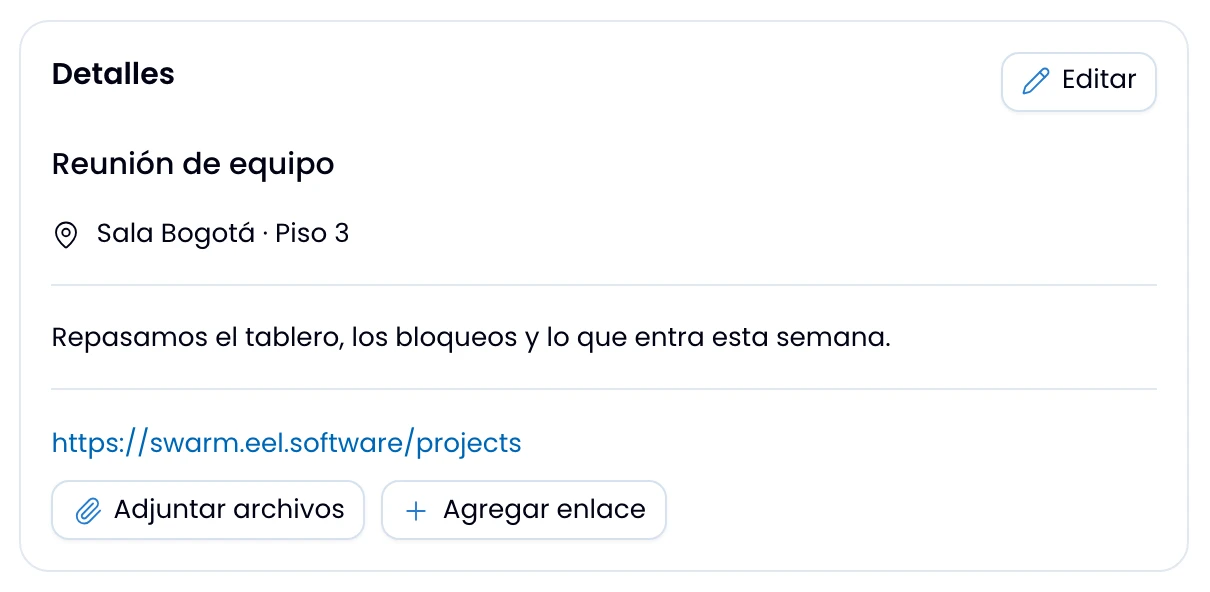
The editor has:
- Type: Meeting, Event, Task block, Focus time or Out of office. Each type paints the event its own color on the grid.
- All day: switches the event between hours and full dates.
- Location: a line of text.
- Description: formatted text, the same editor tasks use.
- Links: add one row per link with Add link and paste the URL alone. Reading the event, each one opens in another tab.
- Files: upload files to the event with Attach files, once the event exists. Each file's row is where you download it or take it off.
- Guests: add them on the events you organize. See Guests and RSVP.
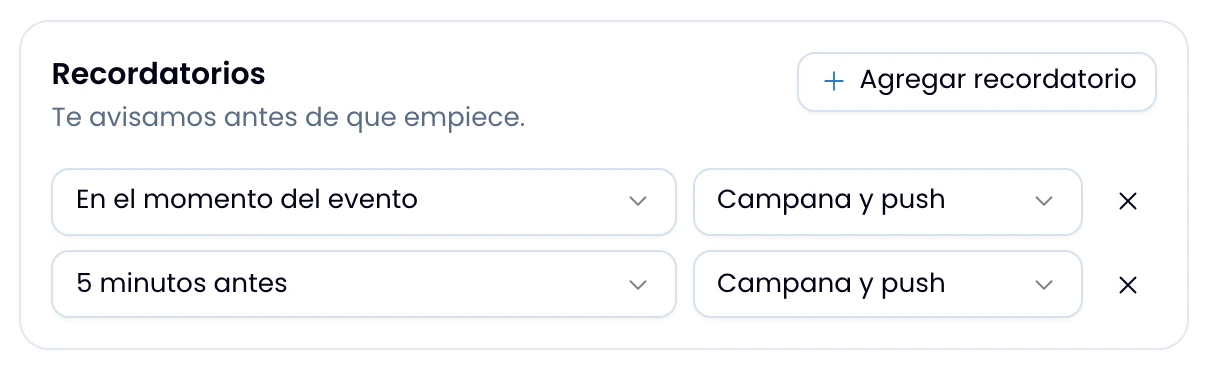
- Reminders: Add reminder adds them once the event exists: save it and open it again. Everyone sets their own, whether or not you organize it; the moments and the channels are in Reminders.
The peek preview
Click any block to see the event's essentials without opening it: the date and time, the type with its color, and whatever guests it has. If you organize it, the preview also carries Edit and Delete. Close it with the X or with a click outside.
Moving and resizing
Drag an event to move it, and its bottom edge to change how long it runs. Swarm snaps both to 15-minute steps while you drag. If the save fails, the block reverts to where it started.
Task chips
Turn on My tasks in the Show menu to overlay your due-date tasks on the grid: in the all-day tray for Day and Week, in the cell itself for Month. Every chip carries a checkbox glyph and its own color, always the same one. That is how you tell a task from an event at a glance. The title is struck through once the task is done.
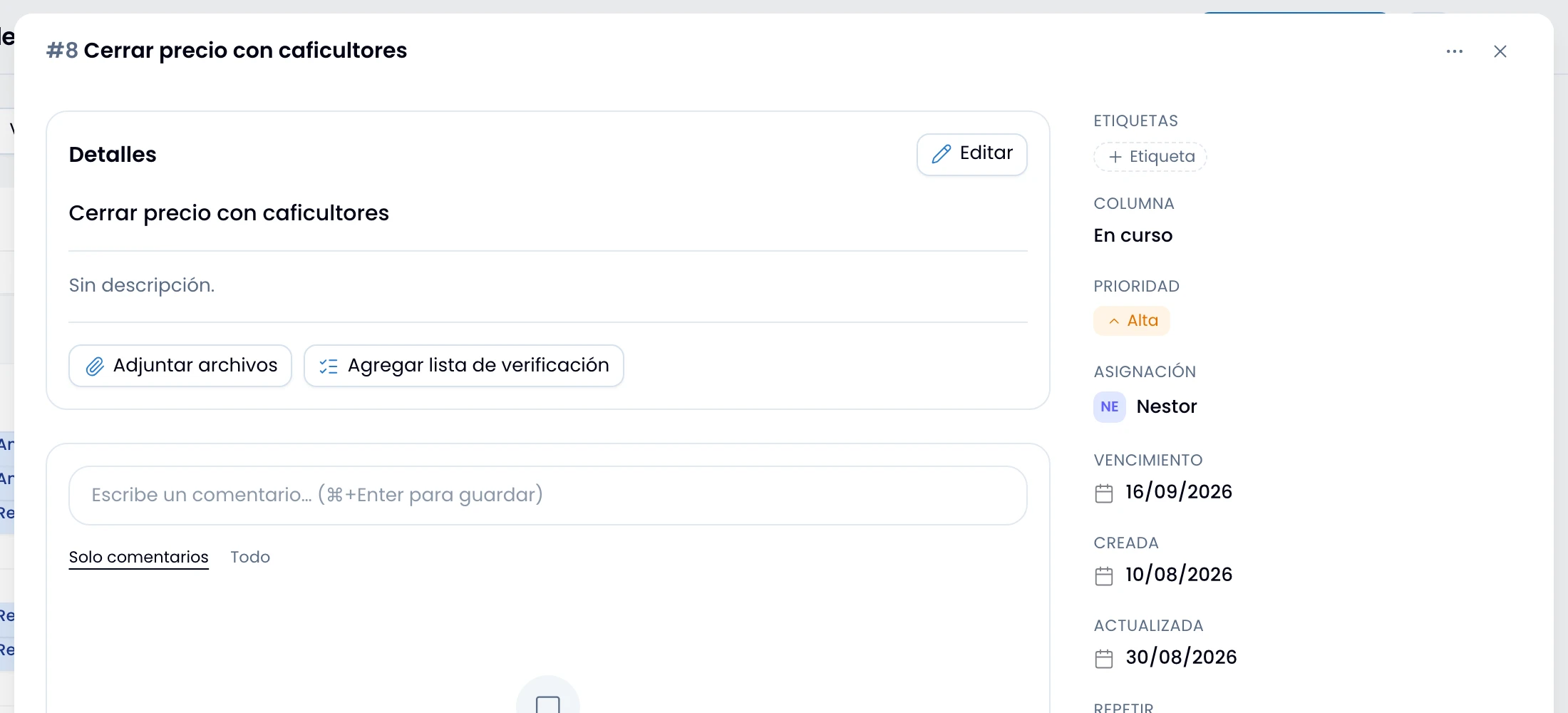
Click a chip to open that task's drawer on top of the calendar, without leaving the grid. Drag a chip to another day to move its due date.
Multi-day and all-day events
Drag a multi-day event's bar to move the whole event, and its left or right edge to extend or shorten how many days it spans. An all-day event spanning several days crosses those days as a single bar.
Drag across the empty cells of the all-day tray to create an all-day event covering several days at once. The tray is always there in Day and Week, whether or not that period holds anything.
Click the bar to open its preview, and change the start and end dates from Edit.