Recurring tasks
Rules that create a whole task, checklist, labels and priority included, on a schedule.
Who can use this? Anyone who can create tasks in the project sees, pauses and deletes its recurring rules. Rules respect project visibility, with no exception for admins.
Set up a recurring rule and Swarm creates the task for you on a schedule: the Monday report, the monthly backup, the daily review.
Every rule carries a full task template: title, rich-text description, priority, labels and a checklist. Only who does it and when are left to the wizard's last two steps.
Where they are created
Create a rule from the project, from the board, or from an open task:
- Open the project menu, go to Recurring tasks and use New rule.
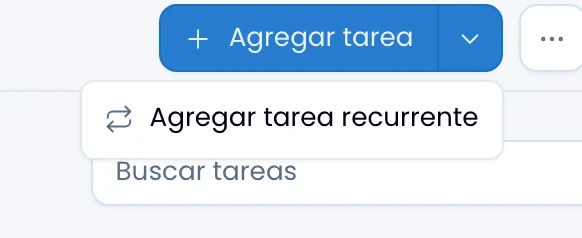
- Open the chevron on the board's split Add task button and choose Add recurring task.
- On an open task, use Make recurring, in its Repeat section or in the task's menu. The wizard opens seeded with that task's title, description, assignee, priority and labels, and on save links the task to the new rule as its origin.
The rules drawer
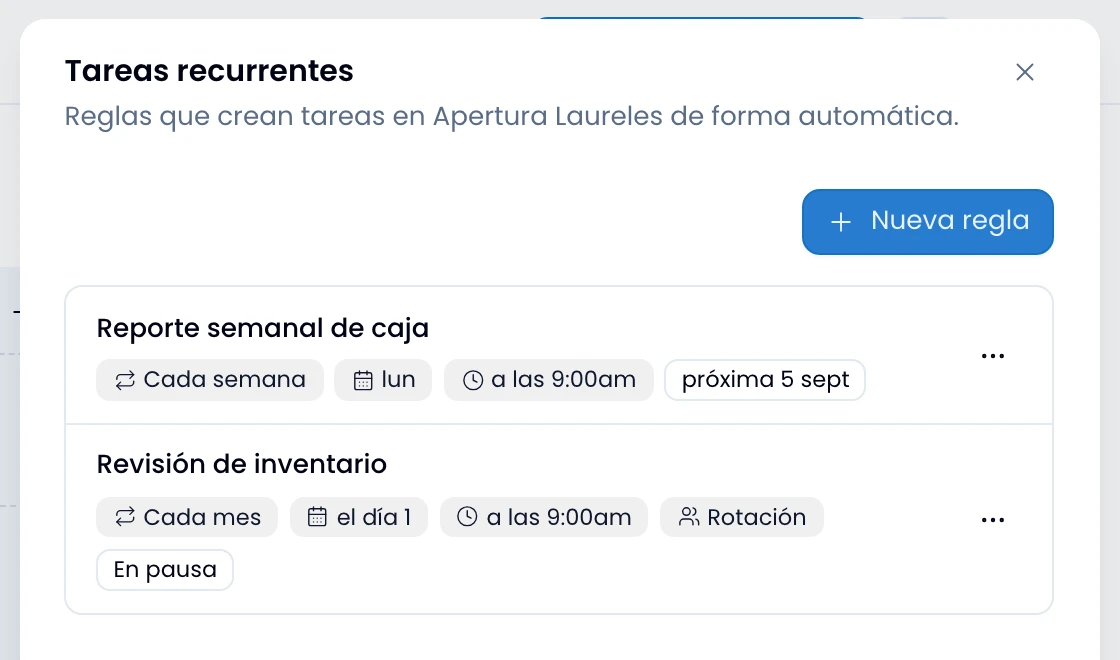
Open Recurring tasks to see when each rule runs without opening it. The drawer lists the project's rules.
Each rule shows its frequency ("every week"), that schedule's days or dates, the time of day, and a rotation if it has one. At the end you see "Paused" or the date of its next run.
The wizard, in four steps
Work through four steps to create or edit a rule. The form is the same wherever you open it from.
- What: write the title and the rich-text description, and pick the project's labels and the priority.
- Checklists: build the checklist template every task created from this rule will start with. Each one is born with these same items, unchecked.
- Who: choose One person or Rotation. In a rotation, the next task always goes to whoever is next in the list. A Nest group counts as one turn, and the people inside it alternate when that turn comes up. A group of five does not hand out five turns, it hands out one. Fill the rotation to move on.
- When: repeat every N days, weeks, months or years. For weekly, toggle the days one by one; for monthly, pick the day of the month (1 to 31) or Last day of the month; for yearly, the start date sets the day and the month. In a shorter month Swarm creates the task on its last day: day 30 falls on February 28, rather than skipping the month. The step also carries the time of day, the timezone, a start date, an optional end date, and how many days after creation the task is due.
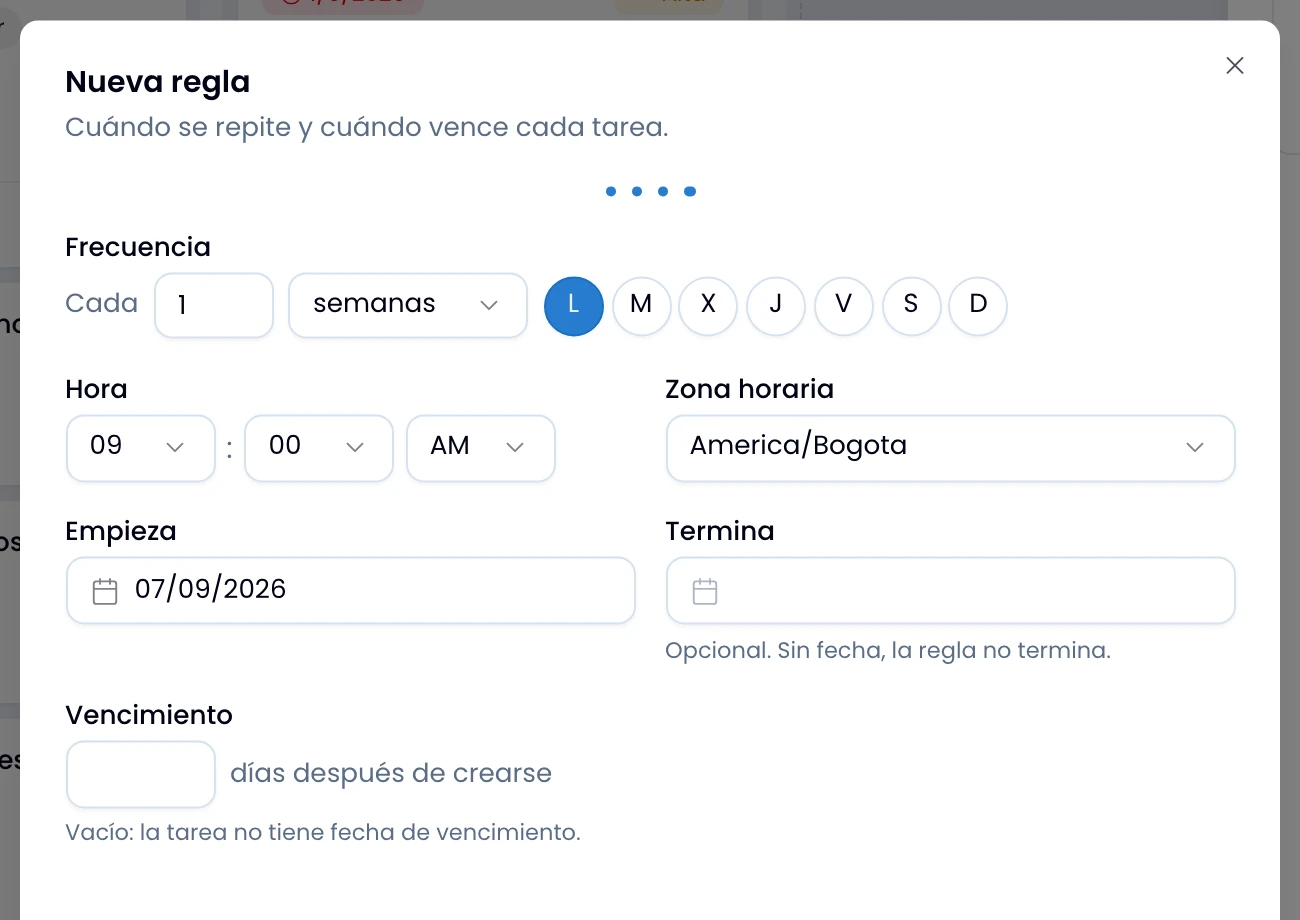
Each step validates on its own: Swarm lights up Next once the current step is complete. Save the rule with the button on the last step.
When the task appears
Look for the new task in the board's first column at its scheduled time, within fifteen minutes of it.
Swarm does not backfill missed periods. Each rule creates one task and schedules the next, never several at once for the cycles that went by.
Pausing, and Stop repeating
Pause a rule to stop new tasks without losing anything: Swarm keeps its whole configuration, and the same button resumes it.
Use Stop repeating, in the Repeat section of a task that belongs to a rule, to delete the rule entirely. The tasks it already created stay as ordinary tasks, including the origin task if the rule started from one. The confirmation says so before you delete the rule.
Who sees them
Rules live in the project, not in your account. Pause or delete any of them, whoever created it.
Read projects, labels and tasks from the Swarm API, including the tasks a rule creates. Create and update tasks there, and create labels.