Table view
Sort and edit several of a project's tasks at once, in rows and columns.
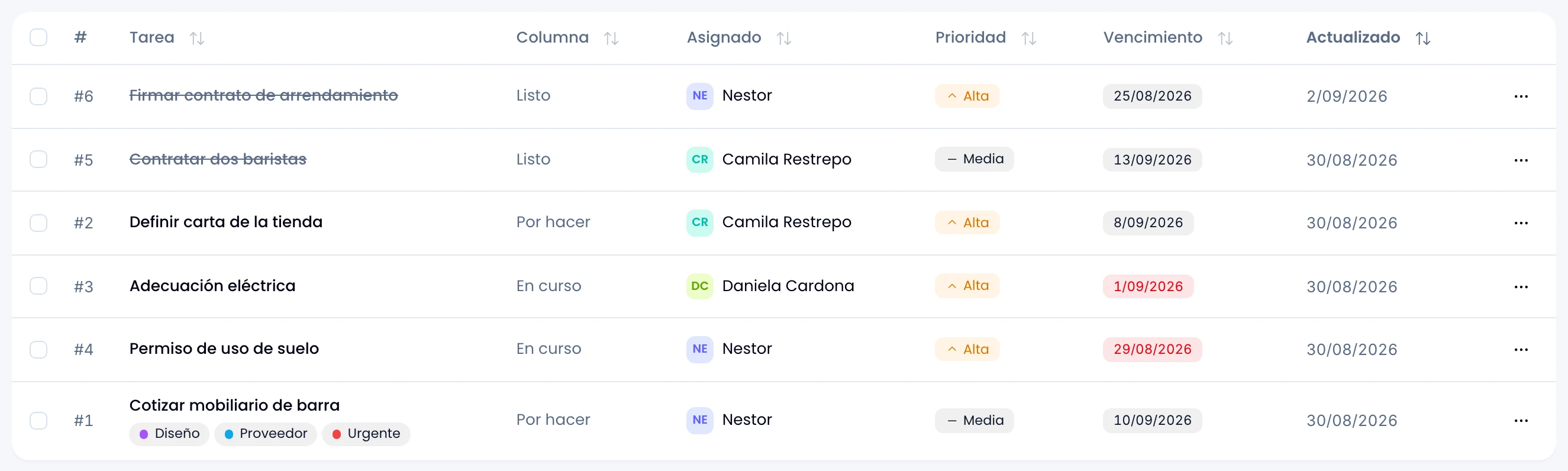
At the end of the toolbar, after search, switch from Board to Table to see the same tasks in rows: number, Task with its label chips, Column, Assignee, Priority and Due date. Click the Task, Column, Assignee, Priority or Due date header to sort by it, and click again to reverse the order. Click a row to open that task's drawer.
You see the tasks that changed most recently first. Swarm cuts a long title to its column's width: hover it to read the whole thing.
Swarm remembers the chosen view per project in this browser. Copy the link with the table open and whoever receives it opens it that way.
Selection
Mark tasks with the checkbox on each row, or mark every row in view with the header checkbox. A shift-click marks the whole range between the last row you marked and this one. Changing the filter, the search or the view clears the selection.
With at least one row marked, a panel counts the selected tasks. From there you clear or invert the selection, and apply the bulk actions:
- Move to column, Labels, Assign, Priority and Due date: each opens its own dialog.
- Archive: one click, no dialog.
- Delete: asks for confirmation.

Labels adds and removes, it does not replace. Mark what you want to put on under Add and what you want to take off under Remove. Any label you leave unmarked in both lists stays exactly as it was on each task.
Large projects
Swarm loads a project's 200 most recently changed tasks into the table. If the project holds more, a note at the bottom of the table tells you how many of the total you're seeing. Click Load more to bring in the next 200.
Run the same bulk actions from the Swarm API. Delete is the exception: the API archives instead.