Calendar settings
The workspace's working hours and your own, week start, default duration, the automatic reminder, and the public-booking switch.
Who can use this? A Swarm admin changes the settings in Workspace › Calendar. My calendar is one every member has.
Set in Workspace › Calendar how the calendar starts out for the whole workspace: week start, the length of a new event, the automatic reminder, working hours and public booking. Under Personal, the Calendar entry opens My calendar, your own page.
Save each card with its own Save. The public booking switch is the one exception: it applies the moment you flip it.
Defaults
Choose in Week start whether the Week and Month grids begin on
Monday or Sunday. Choose the Default duration among 15, 30, 45 or 60
minutes: it is the length a new event takes when you create it with a click on
the grid, with the New event button, or with the c keyboard shortcut.
When you drag across the grid, the event keeps the length you dragged.
Choose separately what colleagues see of your calendar, in Team view and visibility.
Hide weekends on the grid, and overlay due-date tasks or Wrap deals with an expected close date, from the calendar itself: Swarm keeps those preferences in this browser, not on this page.
Reminders
Turn on Automatic reminder, which ships off, and every new event in the workspace is born with a reminder for whoever creates it. Turning it on lets you choose When to notify, among at time of event, 5, 10, 15 or 30 minutes before, 1 hour before or 1 day before, and the Notification type, among Bell and push, Bell only or Push only.
Whoever creates the event changes that reminder or removes it from the event itself. See Reminders.
Default working hours
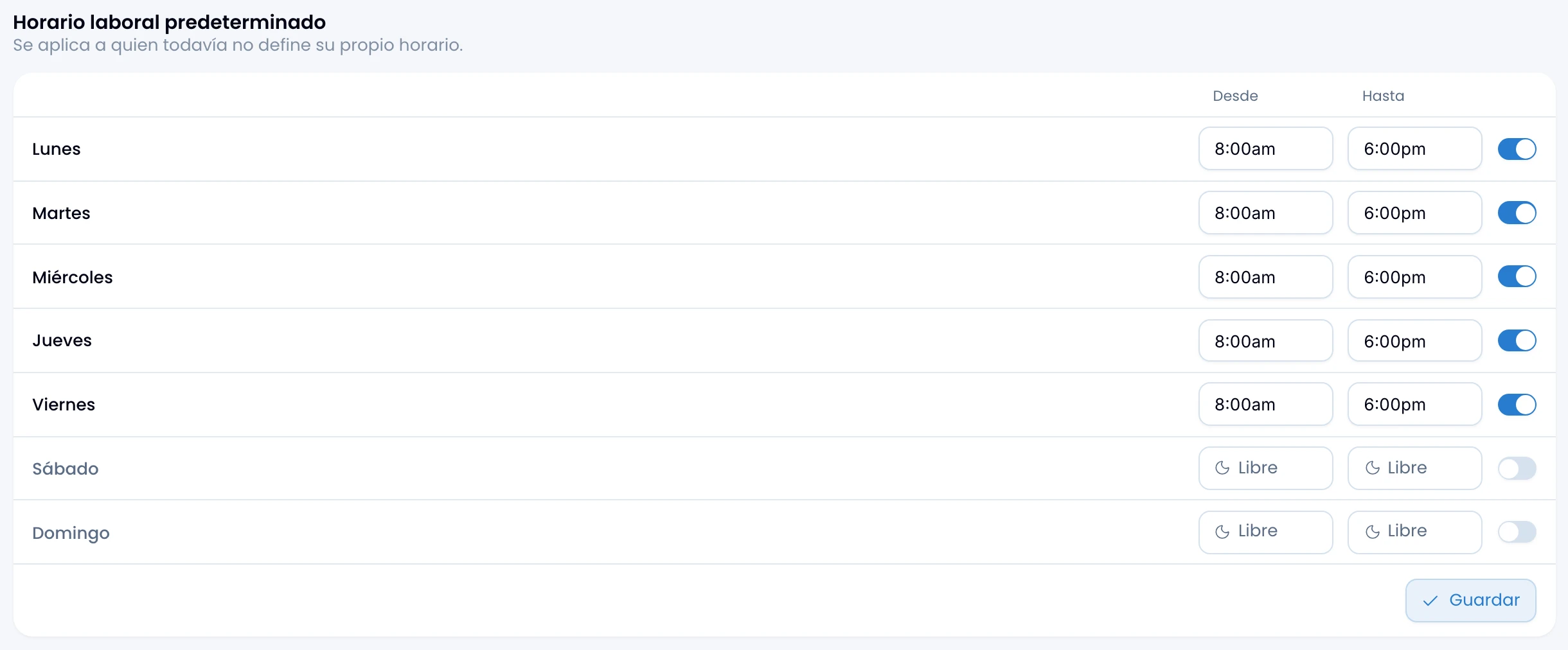
Define here the working week that everyone who has not set their own follows. Each day carries its From time, its Until time and a switch at the end. Click a day's name to switch it on or off: a day switched off is a non-working day and shows Off instead of the hours.
The default is Monday through Friday, 8:00am to 6:00pm, written in whichever of the 12- or 24-hour formats you use. Pick each time from a list in 15-minute steps, or type it: "7", "730" or "7pm".
On the calendar grid, Swarm dims the hours outside each person's own working hours, and dims a non-working day end to end. Create an event at any hour: that shading blocks nothing.
My calendar
Define your own working week in My calendar, the page every member of the workspace has. Its single card, My working hours, carries the same seven-day week.
Use the workspace hours ships on: you follow the default working hours, and you move with them every time the workspace changes them. While it is on you see that week without being able to edit it. Turn it off and that same week stays as your starting point, with every day now in your hands.
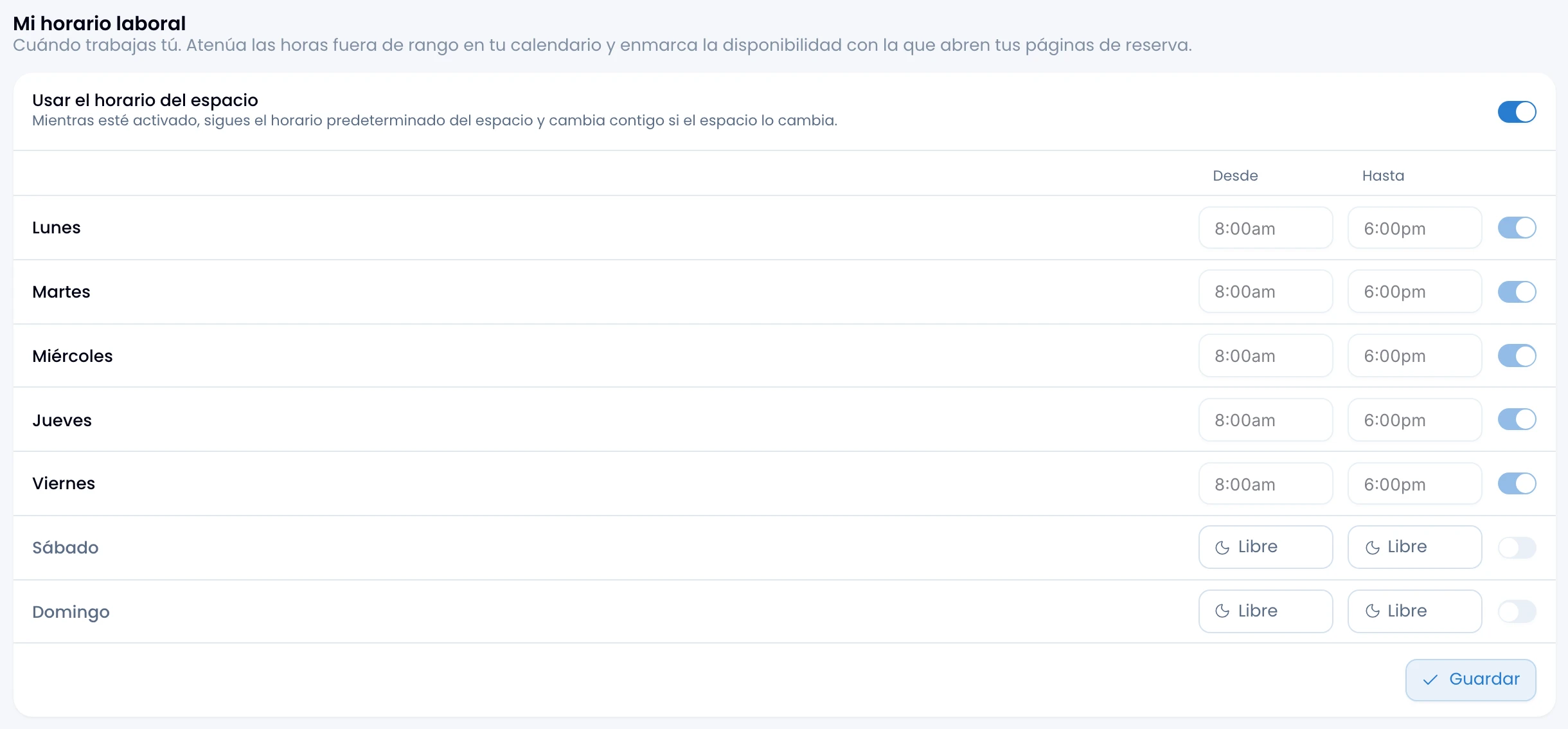
Your week replaces the workspace's entirely, never day by day. With it, your calendar dims the out-of-range hours, and the availability grid of a public booking page starts out on your usual day. What can be booked there is decided only by the ranges you paint on that schedule.
Public booking
Turn on Enable public booking pages so your workspace publishes schedules; it ships off and takes effect the moment you flip it. While it is off, nobody creates new schedules and every existing public link shows a not-found page, regardless of any individual schedule's own settings. A booking that is already confirmed is still managed from its own link.
Create and share schedules from Public booking pages.