My work
All your tasks from every project, ordered by urgency.
Open My work to see every task assigned to you, from any project, most urgent first. A board shows you a project; My work shows you your day.
Open a row and work the task in a panel, without leaving the list. That way you review ten tasks in a row without ten navigations.
Swarm numbers every task and lines those numbers up in a column of their own. Run down that column to find the task someone mentioned by number in a chat.
When you complete a task, Swarm strikes through the title and leaves the number as it is.

Filters
Narrow the list down to what you are doing today:
| Filter | Options |
|---|---|
| Status | Open, completed, all |
| Project | All, or one |
| Priority | All, or one |
| Due | All, overdue, overdue or today, today, next 7 days, no date |
| Archived | Hide, include, only archived |
Search by title.
Combine archived and completed without choosing between the two: Archived is its own filter, separate from Status.
Sorting
Sort by due date (soonest or latest), priority (highest or lowest first), project A–Z, title A–Z, or newest first: seven options.
Swarm puts what is due first at the top until you change the order.

Creating a task
Create a task from here and pick the project it goes in. The picker offers only the projects you can file tasks in.
The digest email
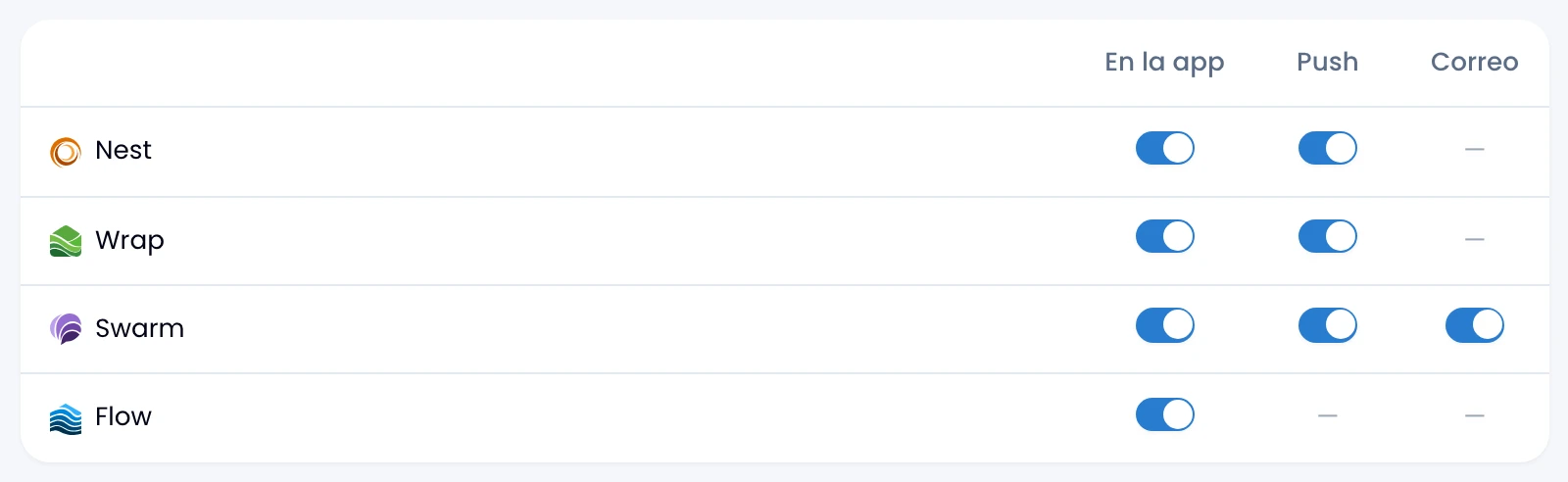
Swarm sends you one email a day with your tasks that are overdue or due today.
Swarm also alerts you on screen when a task comes due.
Turn it off in Nest's notification preferences: switch off Swarm's email channel.