Checklists and comments
Break a task into steps, and leave context where people will look for it.
Checklists
Break a task into steps: add a list from the button next to Attach files, under the description. A task carries as many lists as you need, each with a name and its items.
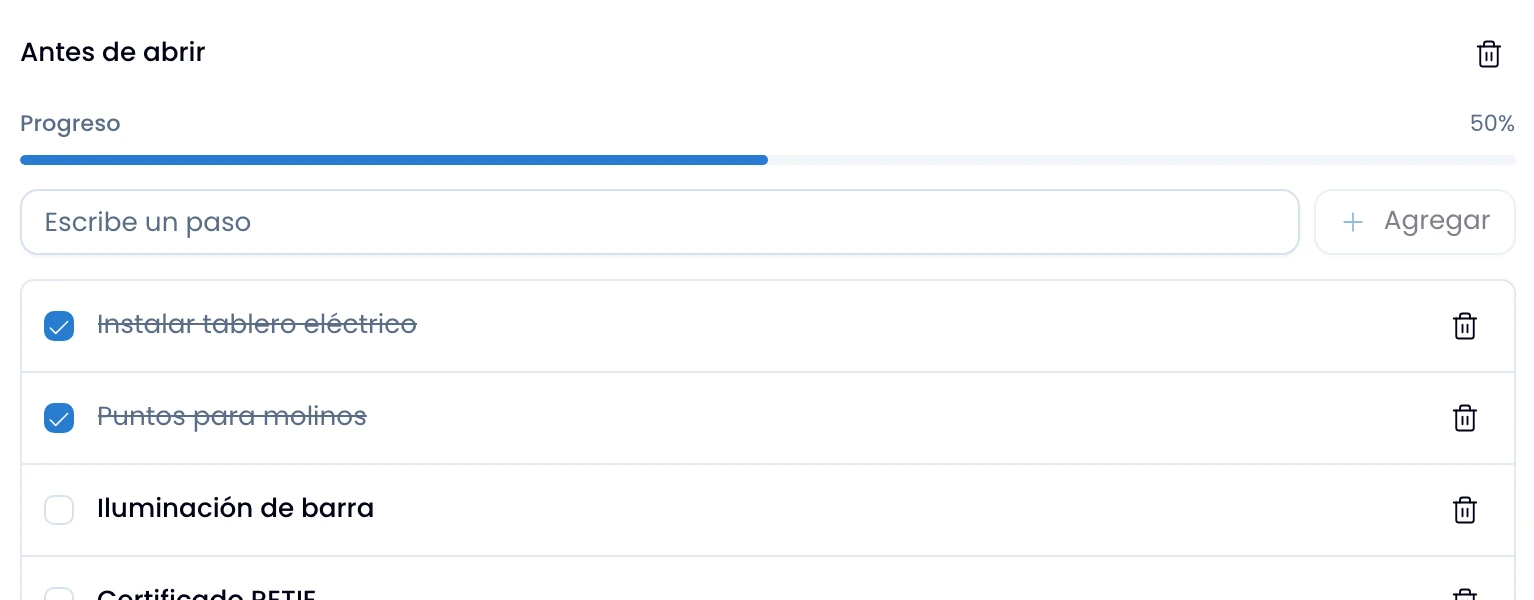
Each list carries its own progress bar. Progress is per list: "3 of 4 launch checks" and "1 of 8 copy fixes" are two different facts, and Swarm does not add them up into one bar.
Swarm draws that bar from the first item you add.
Edit the name by tapping it. Delete an item and it goes straight away, with no confirmation.
When you delete the whole list, Swarm asks first and names it: it takes every item with it and you cannot undo that.
Comments and activity
Leave the task's context in a comment and post it with ⌘+Enter. Enter makes a new line, so you write it across several paragraphs without posting it half-finished.
Open Show formatting for bold, italic, lists, links and code, and add emoji from the same composer.
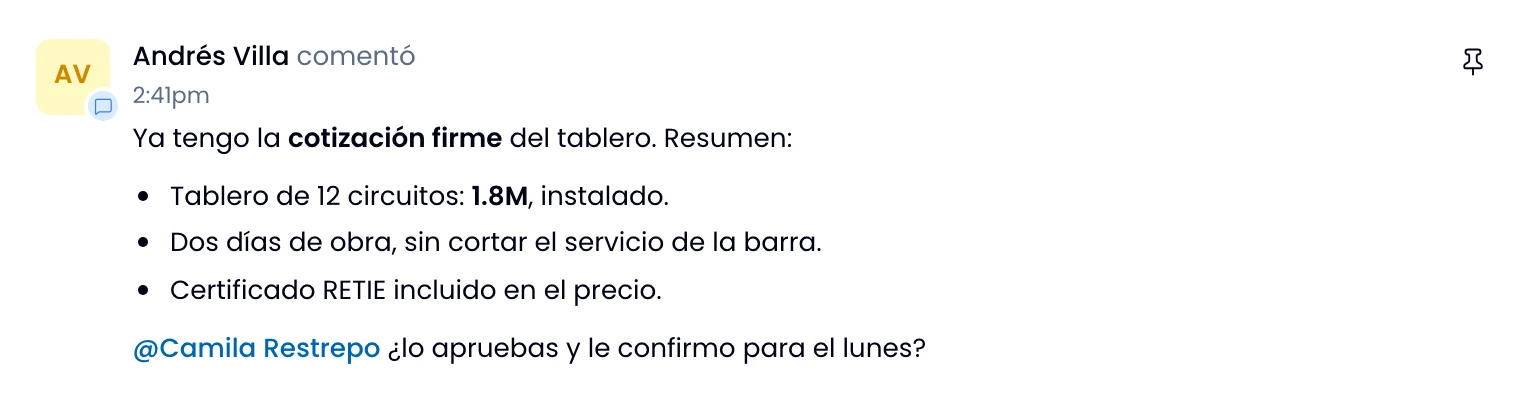
Mention a person by typing @ and their name: they get an alert carrying the
task's title. That alert only reaches people who can open the task's project.
Mention a channel with #, another task with $ and a project with % too.
Swarm renders them as cards with their current status. Open a task's card to go
to it, and a person's name to see their profile.
Switch between two lenses:
- Comments only, the view it opens on.
- Everything, which interleaves the full record: creation, assignments, column, priority, due-date and title changes, attachments, comments, completing, reopening, archiving and restoring.
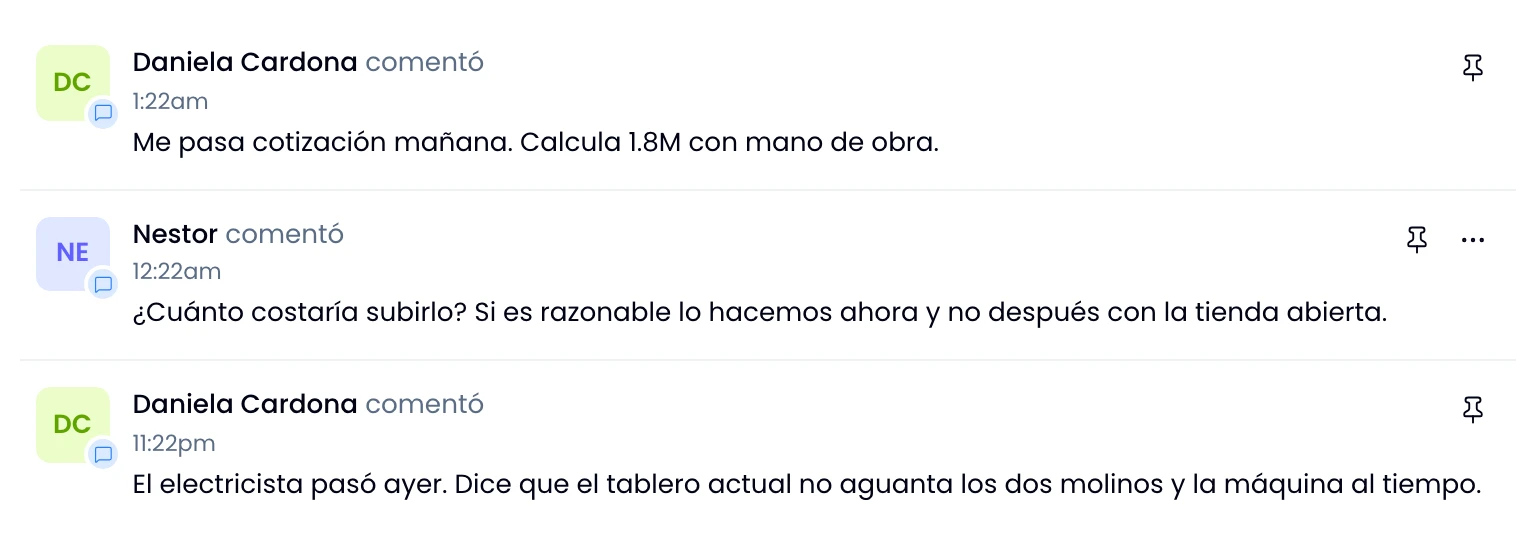
Swarm groups them by day, newest to oldest.
Pinning a comment
Pin the decision everybody has to re-read. The comment rises into a Pinned band above the rest, so nobody scrolls past twenty messages for it.
Anyone in the workspace pins and unpins. Only the author edits the text.
A Swarm admin is the exception: they moderate other people's comments.
Swarm marks a comment that changed as edited.