Starting a project
From the conversation to the board, with what is worth deciding before creating anything.
1. Create the project
Create the project with a name and a kind (internal or client). The kind is only a label for filtering, but you will be glad of it at thirty projects.
The default columns come with it.
2. Decide whether it has to be private
Decide the visibility before you put anything in: every project is born public, and anyone with access to Swarm sees it. If the content is not for the whole team, turn it private under Settings, in the board's options menu.
Do it early. Making it public later reveals all of its tasks, and making it private cuts off non-members immediately.
3. Fix the columns
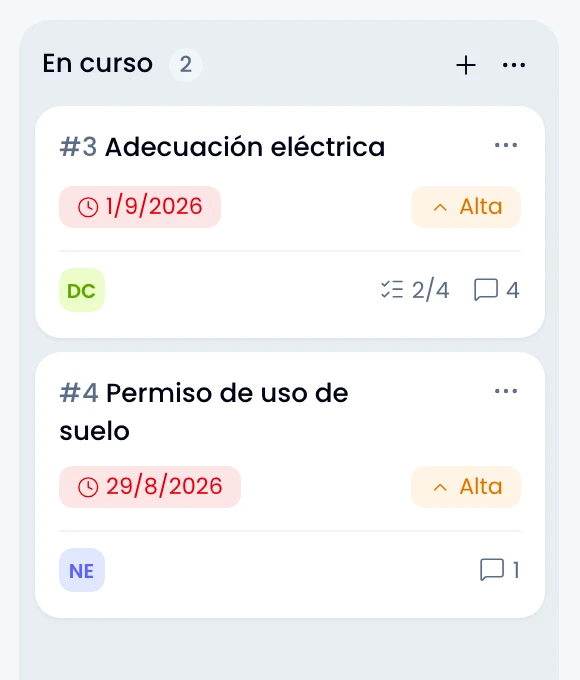
Rename the columns so they say what happens in your team, rather than what the template said. You move them and add others from the board itself.
Keep the columns few: they read better. If you need more detail, use a label rather than another column.
Make it obvious which column means done: moving a card there completes the task, and moving it out reopens it.
4. Add the people
Add the people you will assign tasks to under Members, in the same options menu. They are also the ones in the board's filter.
If the project is public, somebody who only watches reads and comments without being a member.
Pick a lead: they administer the project.
5. Give it a conversation
Give the project a channel for talking through ideas before they become a task. Turn any message into a task with Create task, from the message's menu: the text becomes the description and the references travel with it. Swarm posts the new task's card back into the conversation.
It is the "that thing we said needs doing" path, without leaving the chat.
6. Work
- Drag tasks between columns, and within one to reorder them.
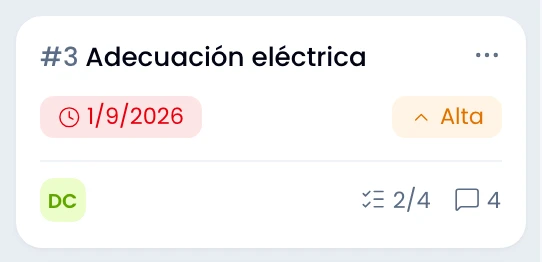
- Checklists break a task into steps and show its progress.
- Comments carry the discussion; pin the important ones.
- Watch a task to get its alerts without being the assignee.
- What repeats every week goes into a recurring rule, which you set up in that same board options menu, rather than a task somebody remembers to copy.
7. Close it
Archive a finished project rather than deleting it: you keep the history and unarchive it whenever you want. Deleting only works when no tasks remain, and Swarm says so rather than deleting quietly.
What the day to day looks like
Open My work to see your tasks from every project together, most urgent first. The daily digest reaches you by email with what is due.
