The calendar
Where it lives, the four views, keyboard shortcuts, and which timezone it works in.
Open the calendar in Planning, between My work and Booking pages,
or go straight to /w/<workspace>/calendar, to see your events by day, week,
month or agenda.
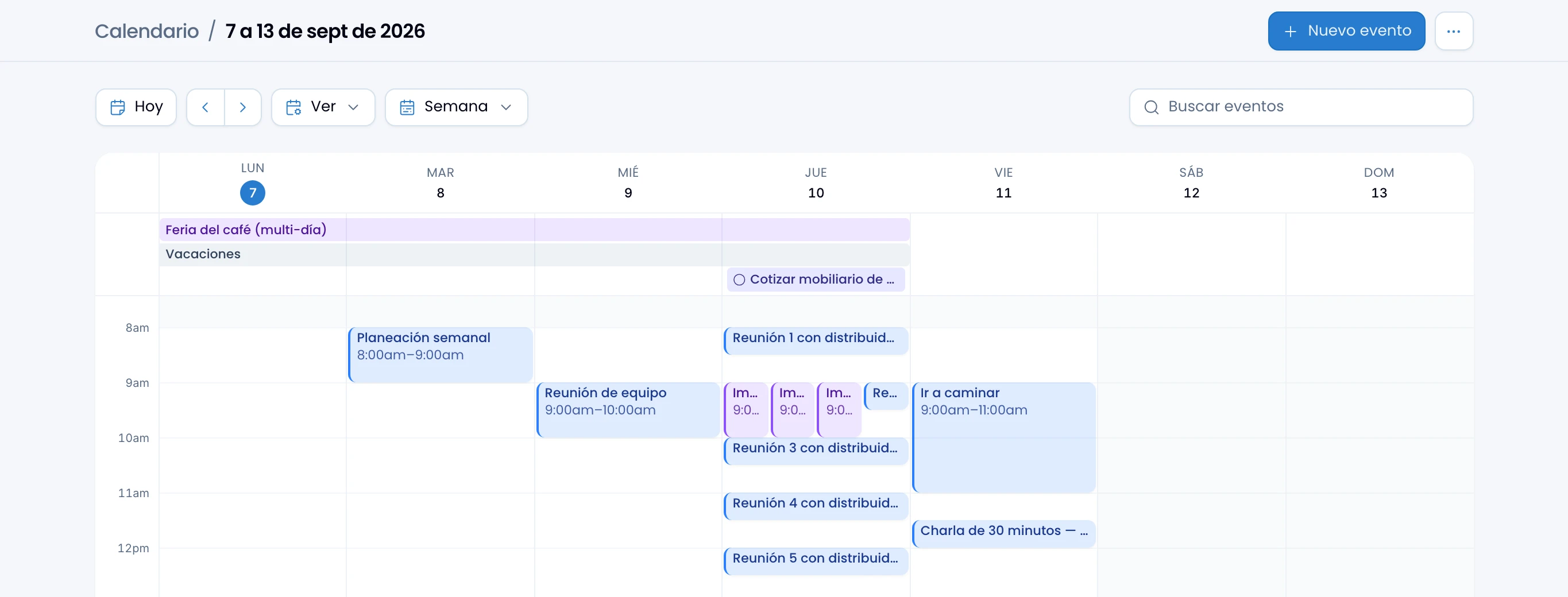
The header
Create an event with New event, at the very top. Beside it, More options (···) opens the rest:
- My calendar visibility: what colleagues see of your calendar in team view.
- Booking pages: your public schedules.
- Keyboard shortcuts: the shortcuts help sheet.
- Subscribe: the link to follow your whole calendar from another app.
- Import .ics: upload a file of events.

The four views
Change date and view from the toolbar, right below the header: Today, the ‹ › previous and next period arrows, the Show menu and the view menu. Today brings you back to the current day, however far the arrows have taken you.
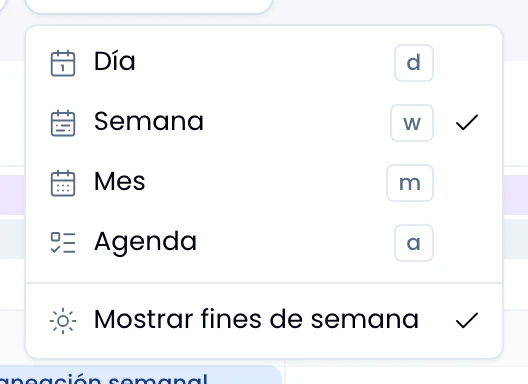
Move between Day, Week, Month and Agenda with a click in the view menu, which shows the current view. Each option carries its own keyboard shortcut, and each view shows the same calendar at a different scale:
- Day and Week are hourly grids, with an all-day tray always present up top.
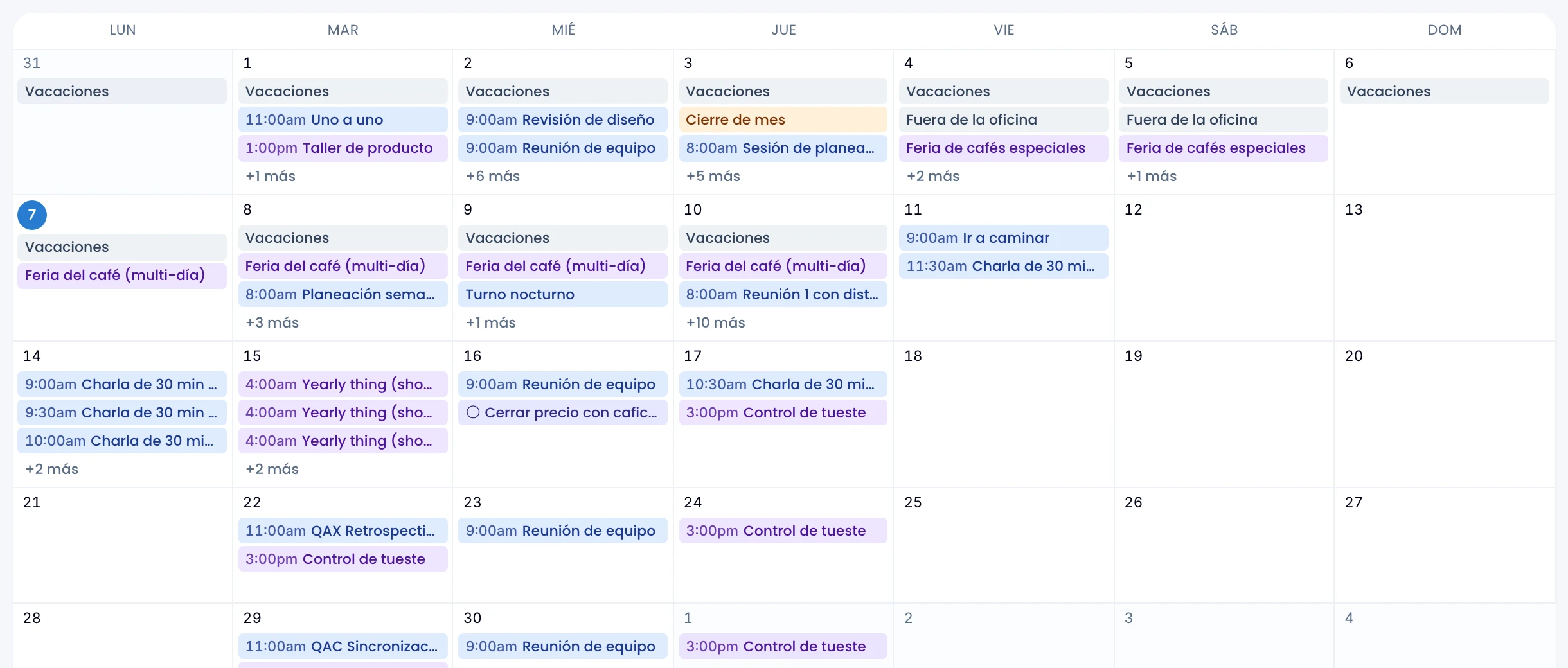
- Month shows the full month in cells, each with its own events.
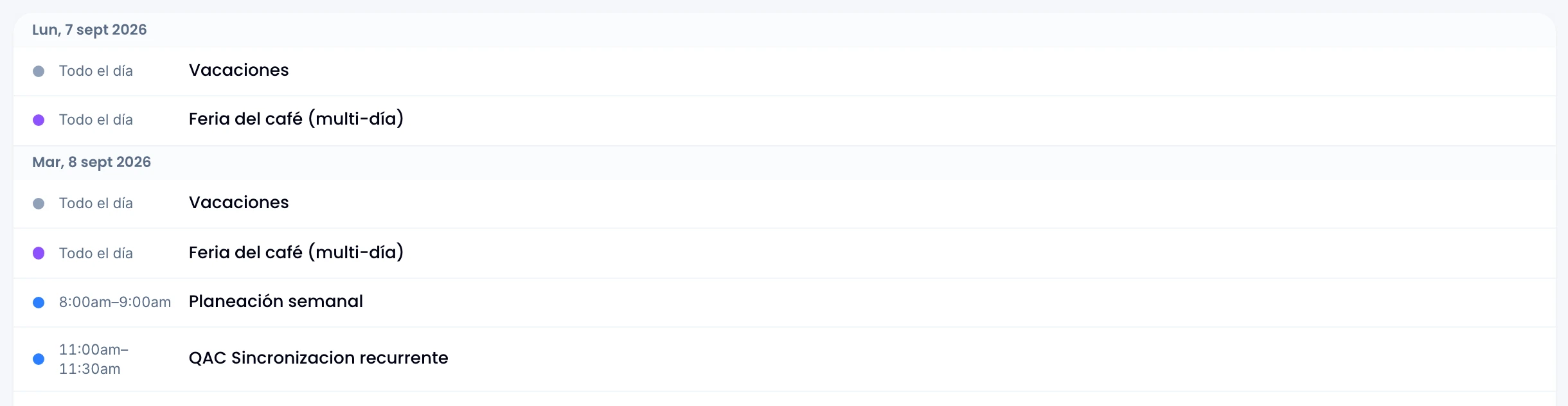
- Agenda is a flat list grouped by day, for scanning what's coming up without fighting a grid.
Turn off Show weekends, at the bottom of that menu, to drop Saturday and Sunday from the Week and Month grids. It ships on.
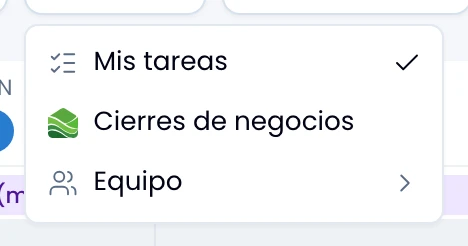
Add layers to the grid from the Show menu:
- My tasks: your tasks due inside the period on screen, always only yours.
- Deal closings: the expected close date of the workspace's Wrap deals, beside the day's meetings and tasks.
- Team: colleagues' calendars, in Day and Week views. More in team view.
If you cannot find Deal closings, your workspace does not use Wrap, or you have no access to it. The workspace owner or an admin can turn it on and give you access.
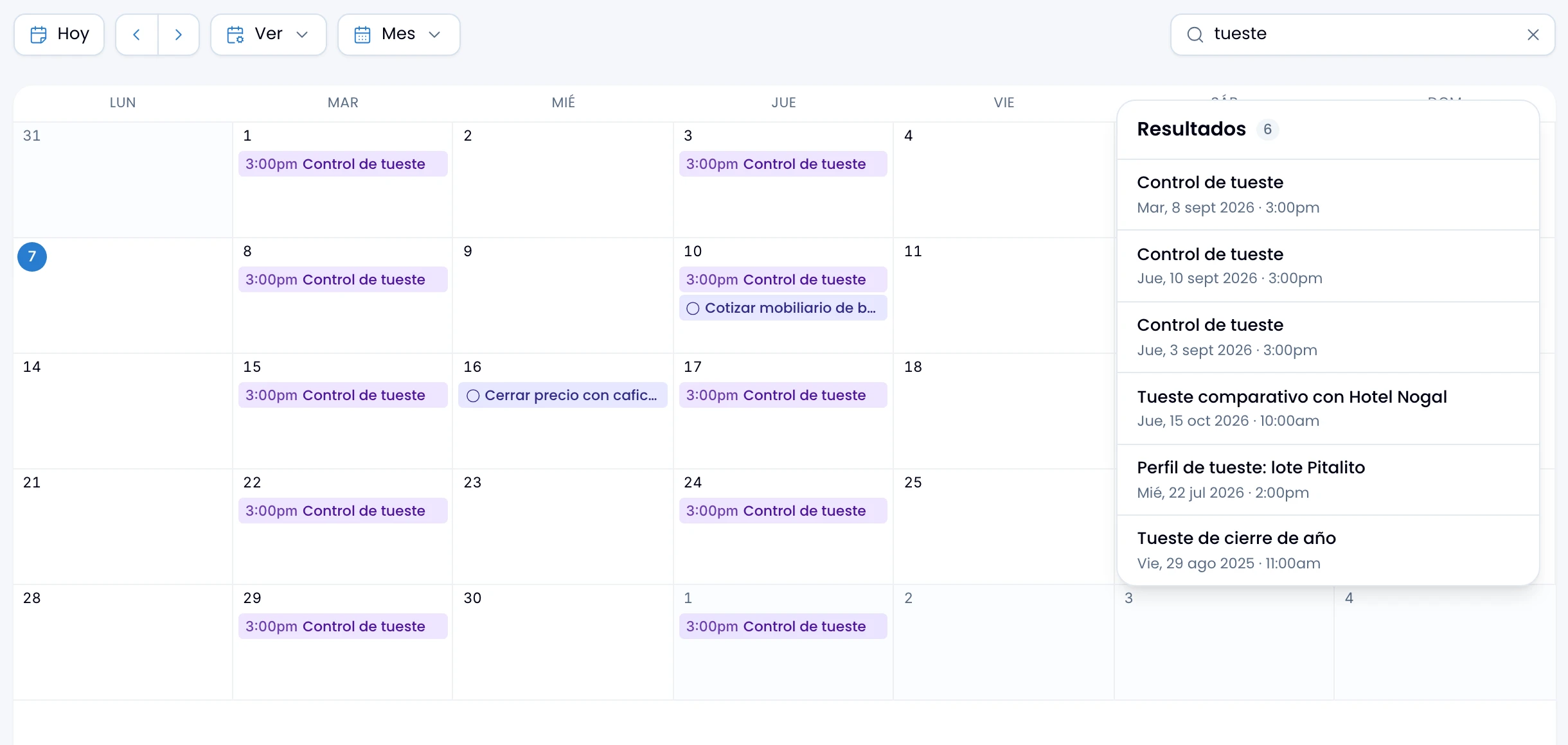
Type in Search events, at the far end of the toolbar, and press Enter to find an event on any date, not only in the period in front of you. The grid keeps what matches there, and Results lists every match beside it, wherever in time it falls.
Every result carries its full date, year included, and the ones closest to today come first, backwards and forwards. Click one and the calendar jumps to Day view on that date and opens the event. A repeating event contributes its three nearest dates, and the list runs to twenty results.
Swarm searches the title, the location and the description of your own events
and the ones you are invited to. Case and accents make no difference: cafe
finds Café.
The text stays in the page's address, so you share a search as it is, and Esc
or the X clears it.
Keyboard shortcuts
Move around the calendar without leaving the keyboard:
| Key | Action |
|---|---|
t |
Go to today |
d |
Day view |
w |
Week view |
m |
Month view |
a |
Agenda view |
j |
Previous period |
k |
Next period |
c |
Create event |
? |
Show this help |
Esc |
Close |
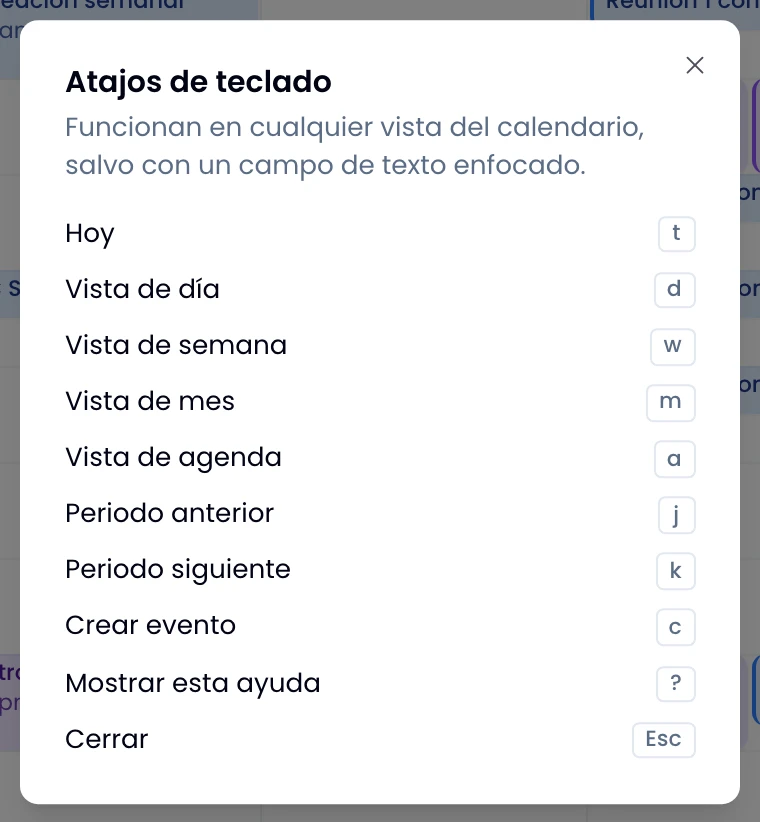
Shortcuts work in any calendar view. They go inert while you type in a text
field, and while a dialog or drawer is open: the event editor, the delete
confirmation, or this help sheet. There, Esc closes what is open.
Timezone
The calendar works in your profile's timezone. If you haven't set one, it uses the workspace's.
On the phone
Open the Calendario tab of the dock to carry your calendar on the phone, with a week strip up top and the day's agenda below. More in the mobile app.
API and MCP
Read and write calendar events from your integrations: see the Swarm API and the MCP tools.