Projects
Run work on task boards with their own columns, public or private, internal or client.
Create a project to run a strand of work on its own task board. Every project has columns, members, a kind and a visibility.
Creating one
Create a project with two things: a name and a kind (internal or client). The kind is the label you organise and filter the list with once you have thirty projects.
Swarm creates the default columns and leaves the project public. Change the visibility afterwards, in the project's settings.
Visibility
Make a project private so that only its members see it: it leaves the sidebar, the pickers and search for everybody else. A public project is seen by anyone with access to Swarm.
Swarm warns you what that means before you save the change. Making it private removes non-members' access immediately; making it public reveals all of its tasks.
Nobody gets into a private project without being a member: a Swarm admin sees its name in the directory and nothing more. If you need into one, ask somebody on the project to add you.
Reading is not membership
Comment on and watch the tasks of any project you can see. Changing a task does require belonging to the project.
Members and lead
Assign a task to somebody who is not in the project and Swarm adds them to its people list on its own. Whoever creates the project comes in as lead and administers it.
The assignee picker starts with the project's people and goes on with the rest of the workspace. The board's filter shows the project's people.
You cannot remove somebody with active tasks assigned. Swarm says so and asks you to reassign them first.
The columns
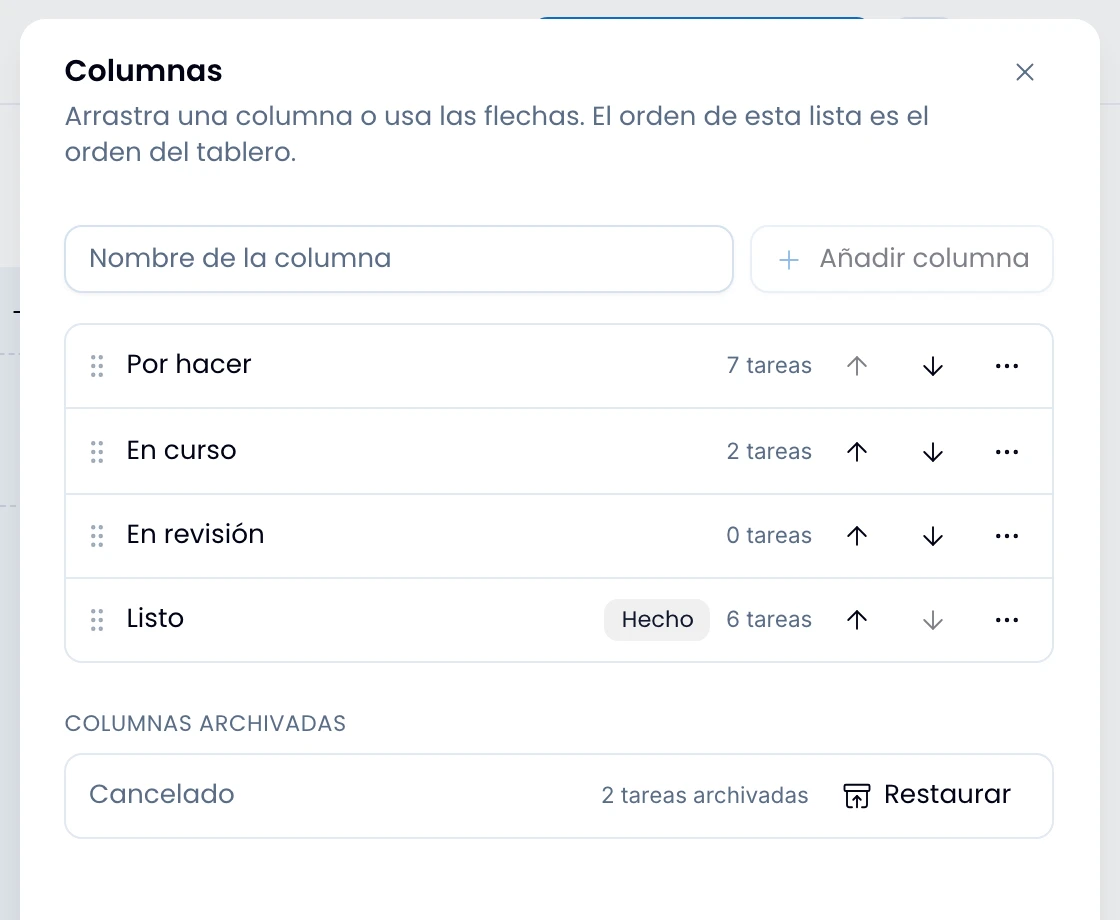
Manage, drag-reorder and extend the columns from the Columns drawer, in the project menu. The full detail, including the done column, cascading archive and the Archived tasks list, is in The board.
Quick rules:
- A project needs at least one active column.
- You cannot delete a column with active tasks inside. Move the tasks out first, or archive the column: it archives the tasks it holds with it.
The directory
Open View all projects to go through the workspace's, with name, kind, task count and creation date. Filter by kind and archived, search by name, and sort by creation (newest or oldest), name or last update.
Archiving and deleting
Archive a finished project to get it out of the way without losing its history, and delete it only if it has no tasks.
- Archiving: the project leaves the sidebar, nobody creates or moves tasks, and the history is kept. Unarchive it whenever you need it.
- Deleting: only if the project has no tasks. If it still has some, Swarm explains why and offers to archive it instead.