Recurring events
Repeat an event, choose the scope of each edit, and split one occurrence off as an exception.
Repeats
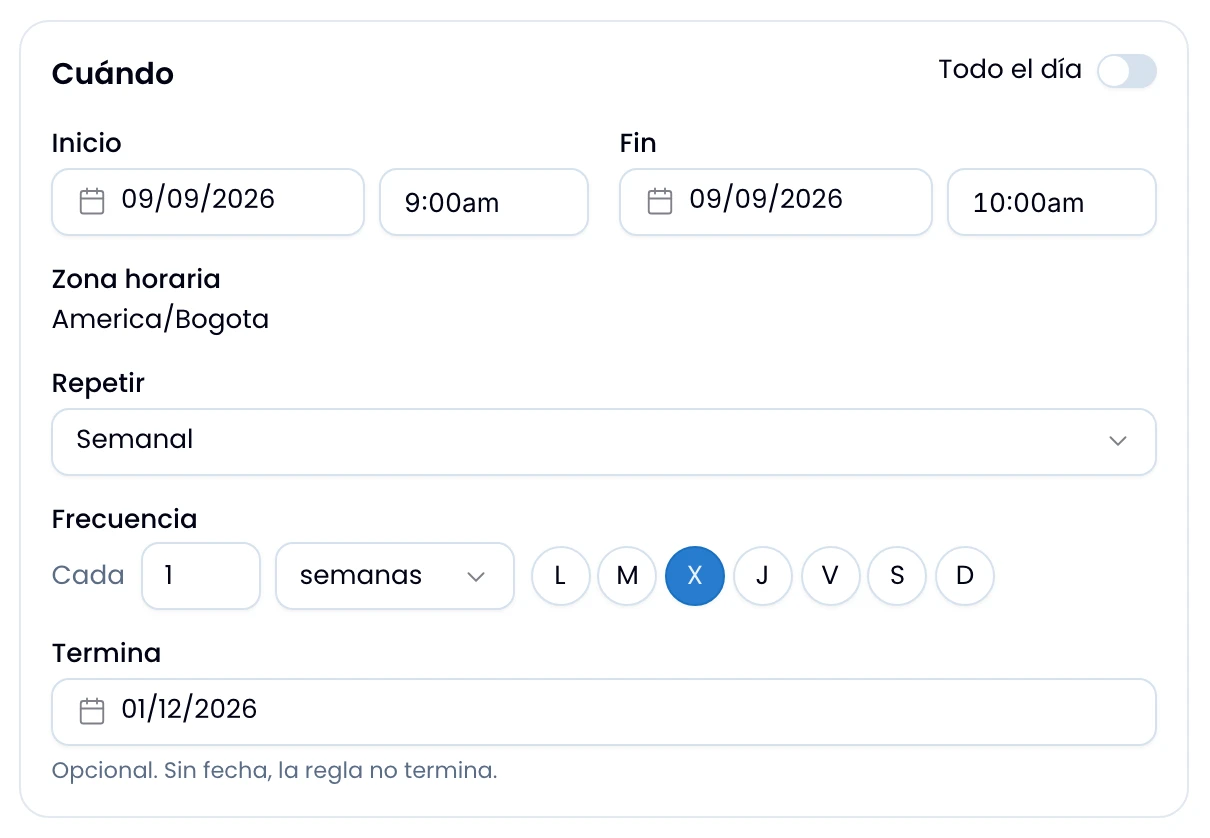
Repeat an event from the editor's Repeats section: Does not repeat, Daily, Weekly, Monthly and Custom. Anything other than "Does not repeat" opens the rule's fields. Choose every N days, weeks, months or years. Under Weekly, tick the weekdays one by one. Under Monthly, pick the day of the month (1 to 31) or "Last day of the month". Under Ends, set a date: without one, the series never ends.
The short-month rule
Set the 31st and the series fires on the last day of shorter months rather than skipping them: it falls on the 28th in February, the 30th in April.
Saving, moving or deleting: the scope
Choose which part of the series each change touches. When you save, delete or drag an occurrence of a series to move or resize it, Swarm opens the same dialog with three options:
- This event only
- This and following events
- All events
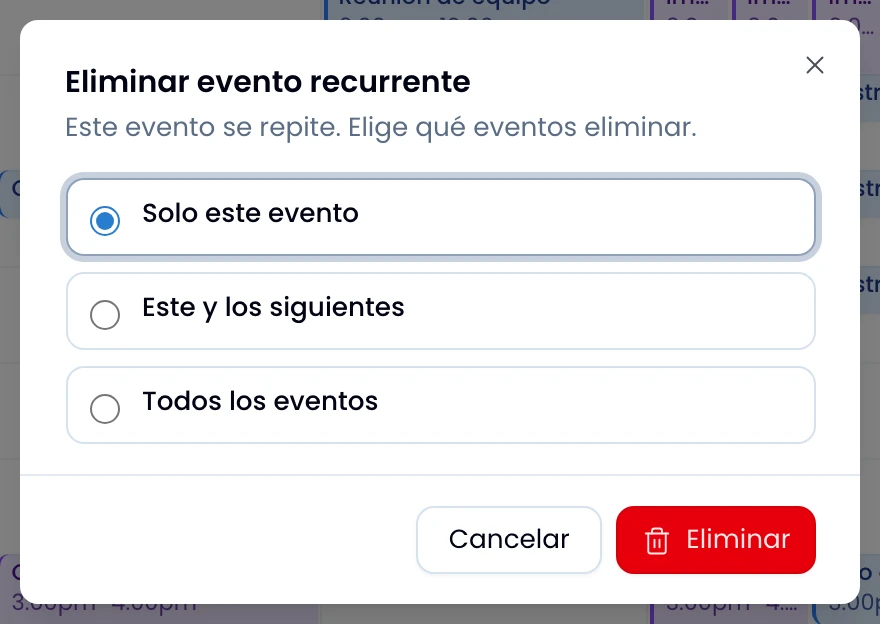
The first time, Swarm checks "This event only." From there it checks the last option you chose this session, whether you chose it while saving, deleting or dragging.
Change the rule itself (the frequency, the weekdays, the day of the month) under "This and following events" or "All events": those are the two options it survives. Under "This event only," Swarm saves an exception on that one occurrence and the series' rule stays as it was. The guest list follows the same three options: see Guests and RSVP.
Exceptions and "Restore to series"
Edit, move or resize a single occurrence under "This event only" and you create an exception: that date parts ways with the series and everything else stays as it was. In the event's peek preview, the occurrence carries an Exception badge.
Press Restore to series, in that same peek preview, to undo the exception: the occurrence goes back to the series' date, time, details and guest list. You restore only the events you organize.
All-day events repeat too.