The board
A project's tasks in columns, with filters and drag and drop.
Drag a card to another column to change the task's state. Within its own column, drag it to reorder it: a line marks where it will land before you let go.
Move a card without dragging it: open the card's ⋯ menu, choose Move to column, then the column you want. The card lands at the end of that column.
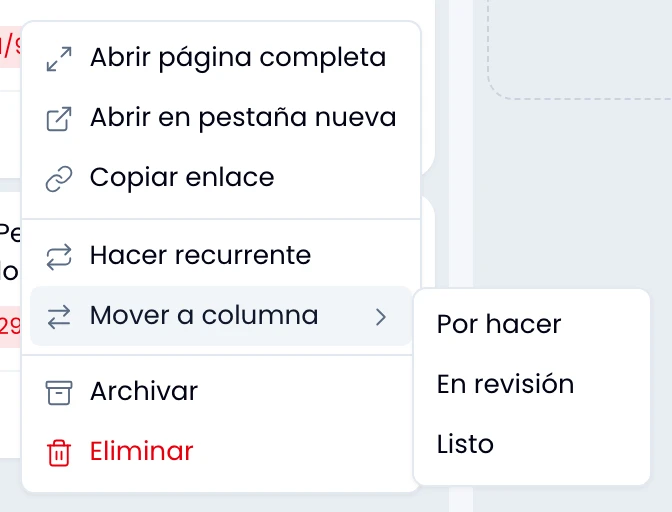
Move a card into the done column to complete the task, and move it out to reopen it. A task completed that way stops counting as open in My work and in the due-date notifications.
Filters
Narrow the board to what you care about from the Filters menu:
- Column: one of the project's, or All columns.
- Priority: low, medium or high.
- Label: each one carries its color, so you tell two similarly named labels apart at a glance.
- Completed: show or hide.
Pick a column and you see only its tasks, on the board and in the table.
Go back to the whole board with Clear filters, in the same menu.
Filter by assignee with the avatars beside the menu. Turn on several faces and the board shows the tasks of all those people. Tap your own to see only your tasks.
Turn on Unassigned, the first face in the row, to keep the tasks nobody has.
Type in the search, at the far end of the row, to find a card by title or by task number.
A board's order is its columns plus where you dropped each card. To order by due date, priority or assignee, switch to the table view. To see your tasks from every project together, My work.
The columns
Open a column's header menu to rename it, move it left or right, mark it as the done column, archive it or delete it. Reorder columns opens the drawer with the full list.
Open that same drawer from Columns, in the project menu. There you drag the rows to reorder them, or move them with the up and down arrows, and every row carries the same menu. To add a column, type its name in the field at the top: it appears at the end of the board.
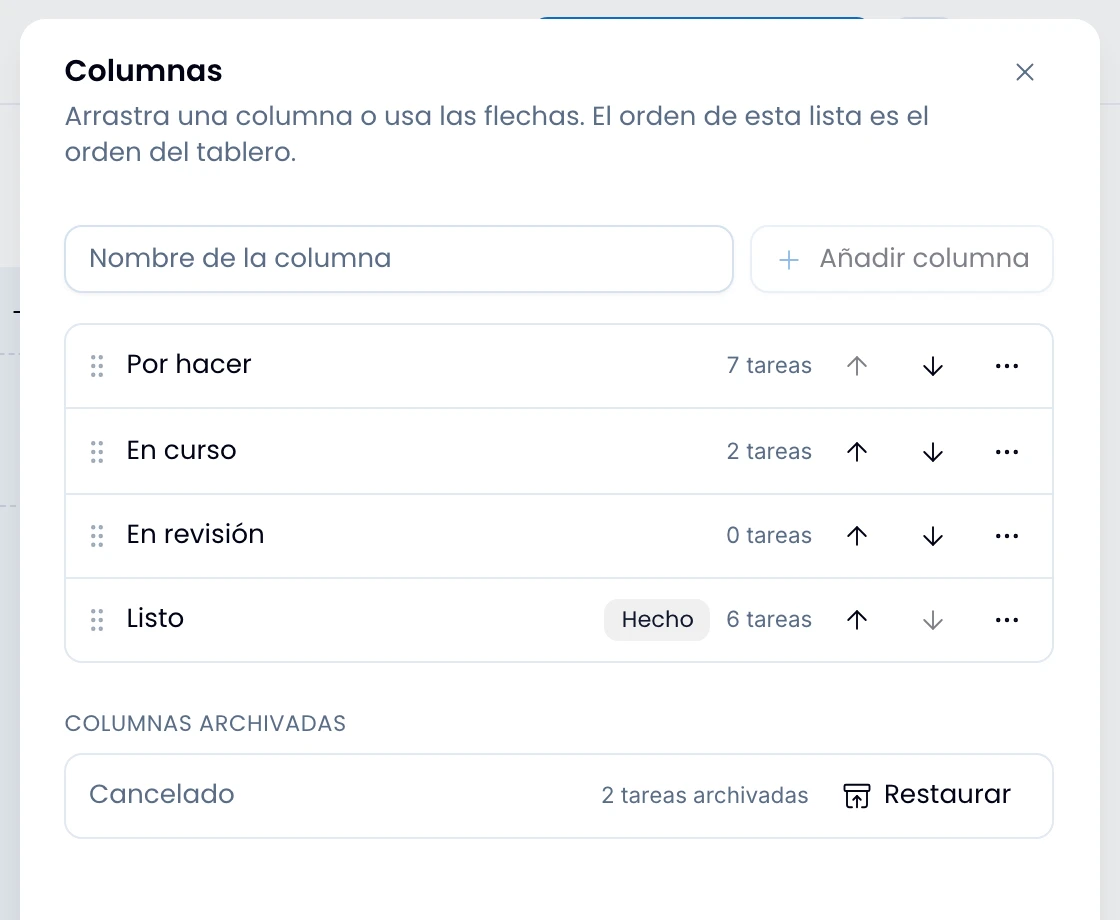
A project has one done column. Mark another one done and the previous one loses the flag, so there are never two at once.
Rename and move that column like any other. To take it off the board, mark another one done first. A project always keeps at least one active column.
Archiving a column
Archive a column and every active task inside it goes with it. The confirmation says how many they are before you accept, and they all land in Archived tasks.
The column moves to the Archived columns group at the end of the drawer, with its task count. Restore puts it back on the board, and you get its tasks back from Archived tasks.
Deleting a column
To delete a column, move its active tasks to another one first.
With archived tasks inside you can still delete it, and the confirmation says how many they are. Those tasks are left "without a column" in the Archived tasks list, and if you ever restore one, it lands on the board's first active column.
Archived tasks
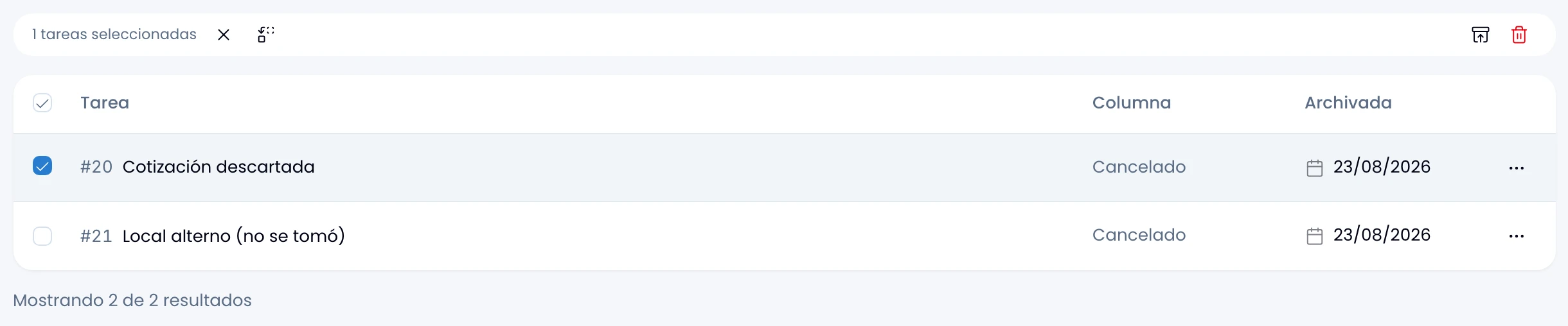
Get any archived task back from Archived tasks, in the project menu: one row per archived task, whether from its own menu, from an archived column, or from a bulk archive. Each row shows the task, its column, "No column" if it was orphaned, and the date it was archived.
Tick the checkboxes to pick several rows at once and use the selection bar to restore or delete forever, along with inverting or clearing the selection. Each row's own menu carries the same pair of actions.
Creating a task
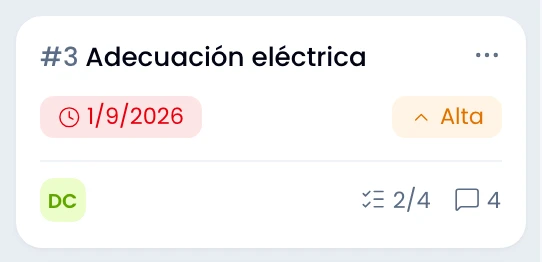
Create a task in whichever column you want with that column's button: the new task starts there. Add task, in the header, creates it in the first column. The arrow beside it creates a recurring task instead.
The project menu
Open the project's options menu, next to Add task, to reach settings, with name, kind and visibility, Columns, Labels, Members, Recurring tasks and Archived tasks, and copy link, archive and delete.
Labels opens the project's labels. Members is where you add people to the project, change their role and remove them.
If you cannot find one of these items, your role in the project does not include it. A project lead changes your role from Members.
An archived project
Read an archived project whenever you need it: its board stays readable and its links keep working, and what it stops accepting is work. A notice says so, dragging is off, and Add task is disabled.
To work in it again, unarchive it from the board's options menu.