Labels
Labels that belong to one project, with color, on cards, table and filters.
Who can use this? Any member of the project creates labels. Renaming one, changing its color and deleting it belong to the project lead.
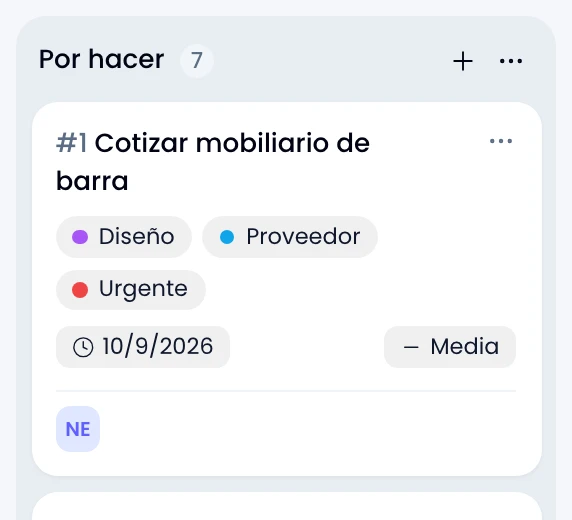
Mark a board's tasks with color labels that belong to that project. A "Design" label made on one board does not show up in any other project's picker: each project has its own list, and renaming or deleting one only ever reaches that project's tasks.
Managing them
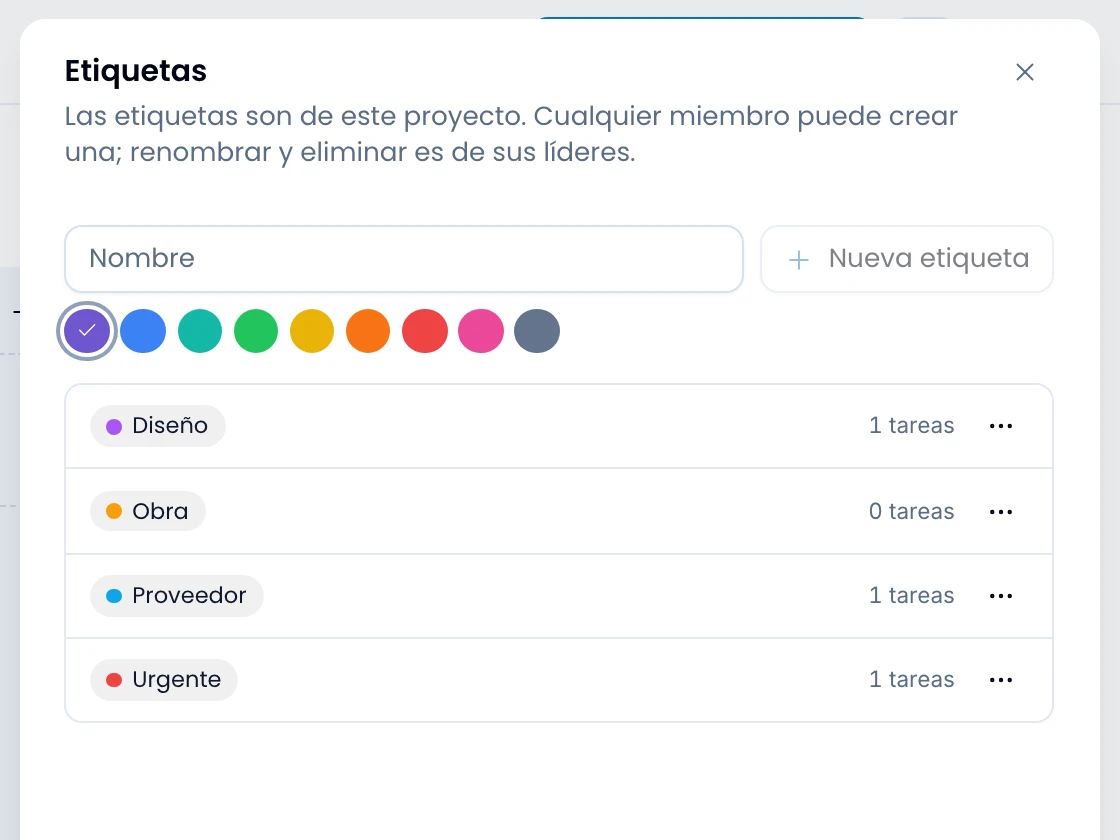
Open Labels, in the project menu, and create one with a name and a color from the field at the top.
Pick the color from two rows of nine: the strong tones on top, the same nine in pastel below. Use one row for one kind of label and the other for another, and you tell the two families apart at a glance.
Create a label without leaving the task: type the name in the Labels picker and choose Create. It works while you create the task and later too, from its summary column. The label lands on that task and is there for the whole project.
Rename a label, change its color or delete it from its row in the drawer. Deleting it removes it from every task that carried it, and the confirmation says how many.
Where they show up
Use your labels where you already work with tasks:
- As color chips under a card's title, on the board.
- Under each task's title in the table view.
- Under Label, inside the board's filter menu.
- As a field when creating a task, and in the "What" step of the recurring tasks wizard.
Read and write labels from an integration with the Swarm API.