Adding somebody to the team
The whole path, from the invitation to their first working day.
Have the new person working from their first day. An invitation hands over apps, not teams, so the rest of the path is putting them into the places where they work.
1. Decide what they will do
Before inviting, answer two questions:
- Will they administer people? If not, pick Member. The admin role is for whoever invites, removes and changes access.
- Which apps do they need? Tick only those. It is easier to open an app later than to explain why somebody saw the accounting.
See Roles and access.
2. Invite
Open Invite in Nest, from Workspace → Invites or from Workspace → Members. Type the address, choose the role and tick the apps.
If that address already has an Eel account, Nest adds them straight away and tells you, rather than sending an email nobody needed.
See Inviting people.

3. They accept
They open the link, create the account if they have none, and land in the workspace with the role and access you ticked. There is no second setup step.
4. Put them where they work
Add them by hand to every place where they work. The invitation grants access to the apps, and inside each one there are memberships that are not inherited:
- In Wrap, the channels whose audience is selected members. You can also put them in the rotation if they will be answering.
- In Swarm, the private channels and the private projects.
- In Nest, the groups you use as audiences.
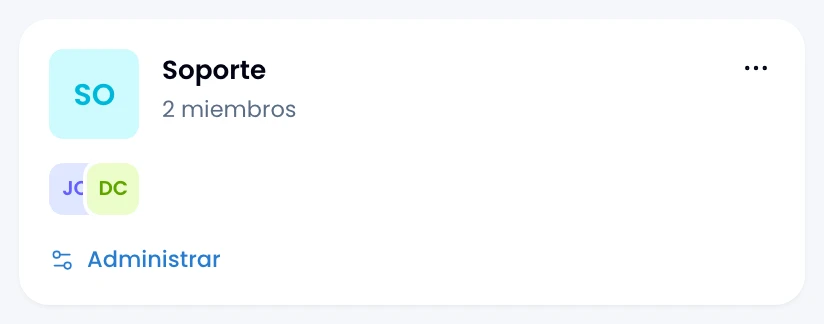
Skipping this step leaves the person inside the workspace with nothing to see. If they tell you so, add them to the channels, projects and groups where they work.
5. Have them set up their own
Ask them to go through:
- Their profile: photo, display name and time zone.
- Their notification preferences.
- Their signature if they will answer email.
- Security, to turn on two-step verification.
When somebody leaves
Close their access in reverse order. None of this deletes what the person wrote: their messages, their notes and their tasks stay where they are, still attributed to them.
- Remove their app access, or remove them from the workspace.
- Check their assigned tasks in Swarm: a project will not let go of somebody who still has open tasks, so those have to be reassigned first.
- Check their assigned conversations in Wrap.
- Check the connected apps they authorized, in the workspace list.

If they come back later, granting the access again leaves them exactly where they were.