Alerts and notifications
One feed for the whole suite, with live counts and per-channel preferences.
Notifications from the whole suite land in the same place, so a Swarm task reaches you without leaving Wrap.
Where they show up
On the app rail. Check each app's red count to see where you have something unread, including the app you are in. Hover it for the latest rows, with a link to see everything in that app. This is the only view that brings them all together.
On each app's bell. Open the bell for that app's notifications and only that app's: Wrap's in Wrap, Nest's in Nest. Each app updates its count live, with no reload. Zap emits no alerts of its own.
On the workspace switcher. Open the switcher when it wears a red dot on its corner: something happened in another workspace. Inside, that workspace's row wears a dot in the color of the app it happened in, with no numbers. Go into that workspace and the bell and the rail do the rest.
Open an alert and you land exactly where it happened, even in another app. If that record is gone, the alert only gets marked as read.

Choosing how they reach you
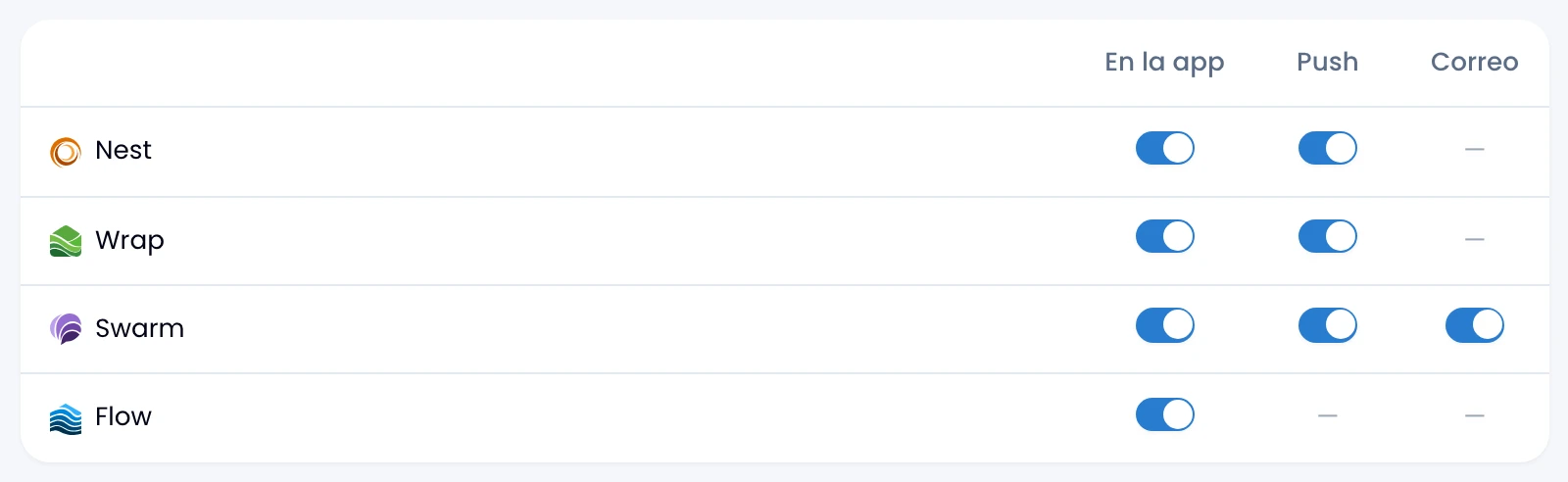
Pick the channel each app reaches you on under Personal → Account, in the table of apps against channels:
| App | In app | Push | |
|---|---|---|---|
| Nest | Yes | Yes | – |
| Wrap | Yes | Yes | – |
| Swarm | Yes | Yes | Yes |
| Flow | Yes | – | – |
Swarm is the only app that emails you. Flow reaches you inside the app only. Zap sends on none of the channels.
Swarm's email covers one alert type: the digest of tasks coming due. Turn it off and that digest stops arriving.
How it interrupts you while you work
In Wrap and Swarm, open the settings cog on the app rail and use the Alerts section to decide how much they interrupt you:
- Sound: a tone on each alert.
- Desktop: a system notification, even when you are on another tab. If the browser blocked it, the menu tells you.
- Push: alerts even with the app closed.
Turn all three off to work in silence; you will see a struck-through bell on the cog.
The three switches are per device and per browser, not per account: turning them on your laptop does not turn them on your phone.
On a phone, open your user menu for the same three switches. There Desktop is called On-screen alerts. On iPhone, add the app to the home screen first, then turn push on.
Push notifications
Allow push the first time, in the browser or in the mobile app. The permission is per device, so you authorize each phone and each computer once.
Tap or click the alert and you land on what it is about: the task, the message in its channel, the deal or the event.
Swarm does not push while it can see you on a live tab: that tab already rings and already shows the alert.
Set yourself away by hand and push goes out again: you stop counting as present when you get up from the desk.