Workspaces
Pick the active workspace and everything you see across the suite belongs to it.
Work inside one workspace and everything you see belongs to it: contacts, conversations, channels, projects, invoices and content. Two workspaces never see each other, even when the same person belongs to both.
The active workspace
Pick the active workspace in the switcher above the app rail. You can belong to several workspaces, and you always work inside one.
Switching workspace changes everything you see. No app gathers several workspaces into one view.
The address says which workspace you are in
Every screen in the suite carries the workspace in its address, right after the app's name:
https://swarm.eel.software/w/verde-origen/tasks
https://zap.eel.software/w/verde-origen/s/tienda/documents
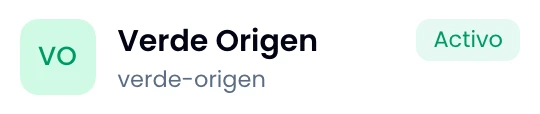
verde-origen is the workspace identifier, the same one on its details card. In
Zap the site comes one segment further along, in /s/<site>/.
Read the address bar and you know where you are without opening anything. Three practical things follow:
- Send any link and it opens the right workspace for the reader. They land on what you sent, in the workspace you copied it from, whichever workspace they were sitting in.
- Two tabs, two workspaces. Leave one tab in one workspace and work in another in the tab beside it. Neither one moves the other.
- A link without that segment opens nothing. If you saved suite addresses in bookmarks or in an email, open them from the app and copy them again.
Switching workspace
Switch from the switcher on the app rail, or from the workspace's card under Platform → Workspaces. Switching is navigating: Eel takes you to the home of the workspace you picked and the address changes with you.
Jump to another app from the rail afterwards and you land in the same workspace you were in. The switcher and the rail always go to the same place.
Type an app's address on its own, naming no workspace, and you land in the last one you picked in the switcher.
The dots on your other workspaces
Keep an eye on your other workspaces without leaving the active one. When something is waiting in another workspace, you get a red dot on the switcher.
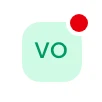
Open it and, on the row of each of your other workspaces, you get one colored dot per app: green for Wrap, purple for Swarm, always in the same order.
No dot carries a number, so it says "something is there" and not "how much". Switch across and the bell and the app rail tell you how much and about what. The dots change live and disappear as you read what was waiting, without a reload.
What a workspace holds
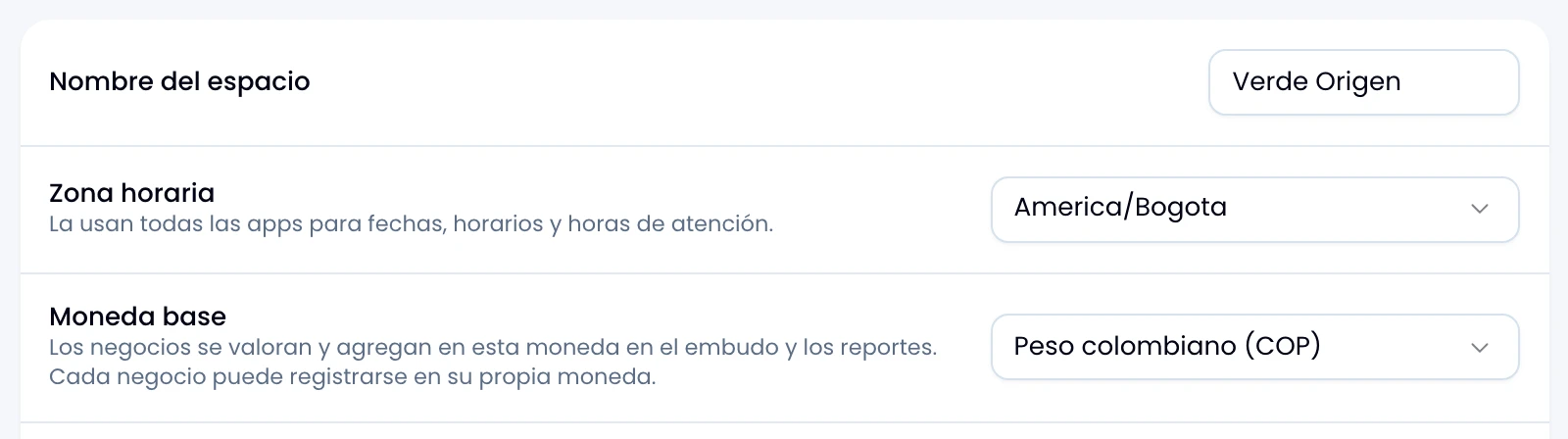
These six fields define your workspace across every app:
| Field | What it is for |
|---|---|
| Name | What the team sees in the switcher and in page headers. |
| Logo | Shows in the workspace switcher, across the suite. |
| Time zone | Dates, schedules and business hours, in every app. |
| Base currency | Wrap values and totals your deals in it, even when each carries its own. |
| Slug | Part of the URLs. Fixed when the workspace is created. |
| Country | Default for addresses and formats. Also fixed at creation. |
Edit the first four in Nest, under Workspace → Settings. The slug and the country sit beside them, on the workspace details card.
If you cannot see Workspace → Settings, ask a workspace admin for the change.
Creating a workspace
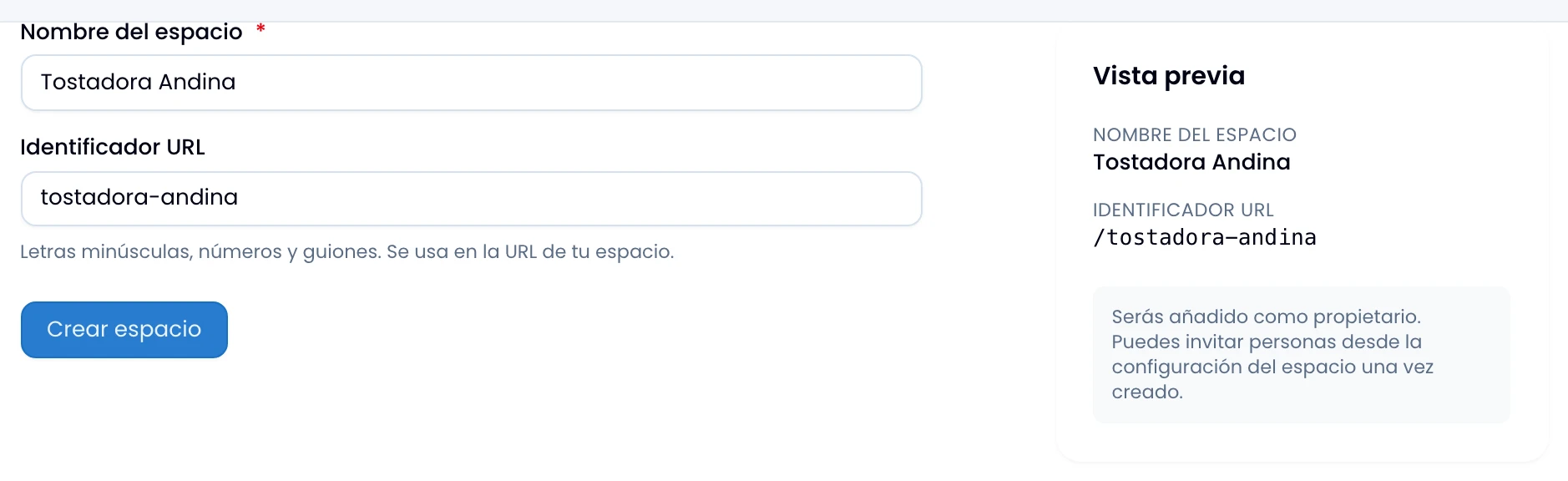
Create the workspace and Eel drops you inside it: the new workspace opens, and it becomes the one you land in when you open an app by its address alone.
Creating workspaces is reserved to platform administrators, not to workspace administrators. If you cannot see the button, ask whoever administers the platform for the new workspace.
Type the name and the identifier builds itself. Change it if you want another one: the preview beside it shows the address the workspace will get.
When a link will not open the workspace
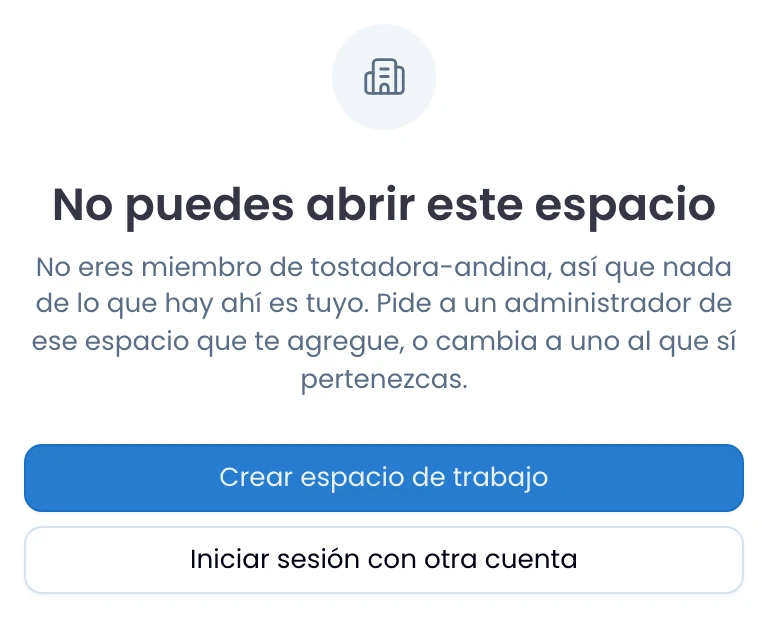
Open a link to a workspace you do not belong to and you land on You can't open this workspace, with the reason written out: you are not a member of that workspace, or there is no workspace by that name. Ask an admin there to add you, or go back to one of yours.
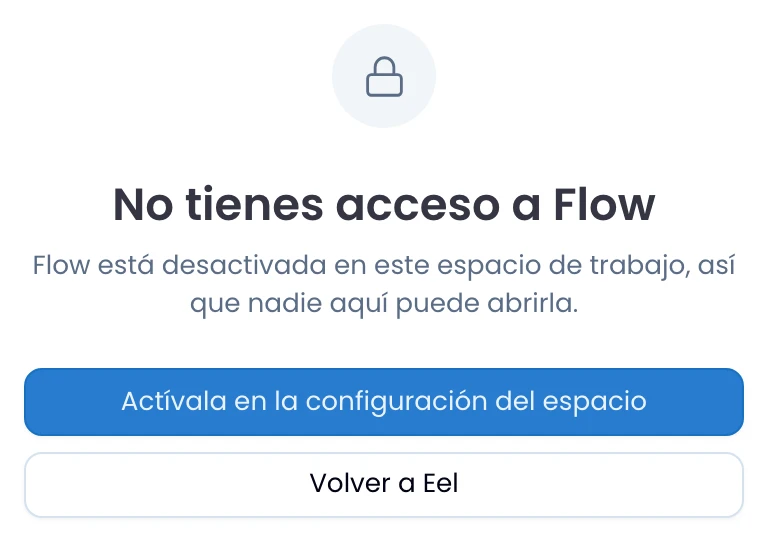
Open an app the workspace has switched off and you land on You don't have access to this app, which tells you it is off for the whole workspace. Owners and admins of that workspace find the button that turns it on right there, in the workspace settings.
If your account belongs to no workspace, that screen says so, and it offers whoever administers the platform their first one.
Seeing all your workspaces
Open Platform → Workspaces to get one card per workspace you belong to, with your role and how many people are inside. Switch to any other one from its card.