Connected apps
External applications authorized to reach Eel as one person's account.
Connect Eel to an outside assistant or to a tool that works on your behalf, then come back to review what you authorized.
A connection acts as one person and can never do more than that person can. An API key is the opposite: it acts as the workspace.
Two lists
Open Personal → Connected apps to see the ones you authorized, across every workspace. Nobody else sees that list.
Open Workspace → Connected apps to review all of the workspace's, with the person who authorized each. It is the screen you open when something smells wrong. A connection authorized in several workspaces shows up in every one of those lists, not just the first.
If you do not see the second list, ask the workspace owner or an admin to run the review.
What each row shows
| Column | What it is |
|---|---|
| App | Who asked for access, with a warning if its domain is unverified. |
| Workspace | Which ones it can act in. Can be more than one; whichever you ticked first at authorization is the default. |
| Permissions | What it can do. Open them to read one by one. |
| Authorized | When it was approved. |
| Last used | When it last did anything. |

In the workspace list that second column becomes Member and names whoever authorized the connection. Everything else is identical, controls included.
Filter by usage (all, used, never used), search by app or workspace, and sort by newest, oldest, last used or app A to Z. The filter, the search and the sort all live in the URL, so you share the link already filtered.
The authorization screen
Check four things before you let an app in:
- Who is asking for access. The verified domain is what counts; the name the app gives itself is the one part anybody can make up.
- Which account it will act as.
- Which workspaces. Tick a checkbox for each workspace you can grant it in; the first you tick becomes the default.
- What it will be able to do in each ticked workspace, permission by permission and grouped by app.
The connection can never do more than you, in any of those workspaces. Lose an access tomorrow and the connection loses it too.
Widening or narrowing the workspaces
Widen a connection to a new workspace or take one away when its needs change, with no fresh authorization asked of the app. If you remove the default workspace, the oldest surviving one takes over. If you remove the last one, the connection is revoked entirely.
Approving new permissions
Give an app you already use the capabilities Eel shipped after you connected it, without authorizing it again from scratch.
Every connection keeps the permissions you approved the day you authorized it. Open Personal → Connected apps and approve what it is missing. Read the list before you decide. It names, permission by permission, what the app would gain in each application. Hit Approve. The assistant gets the new capabilities the next time it connects. If you want them now, disable and re-enable the Eel Software connector in the assistant, without authorizing again.
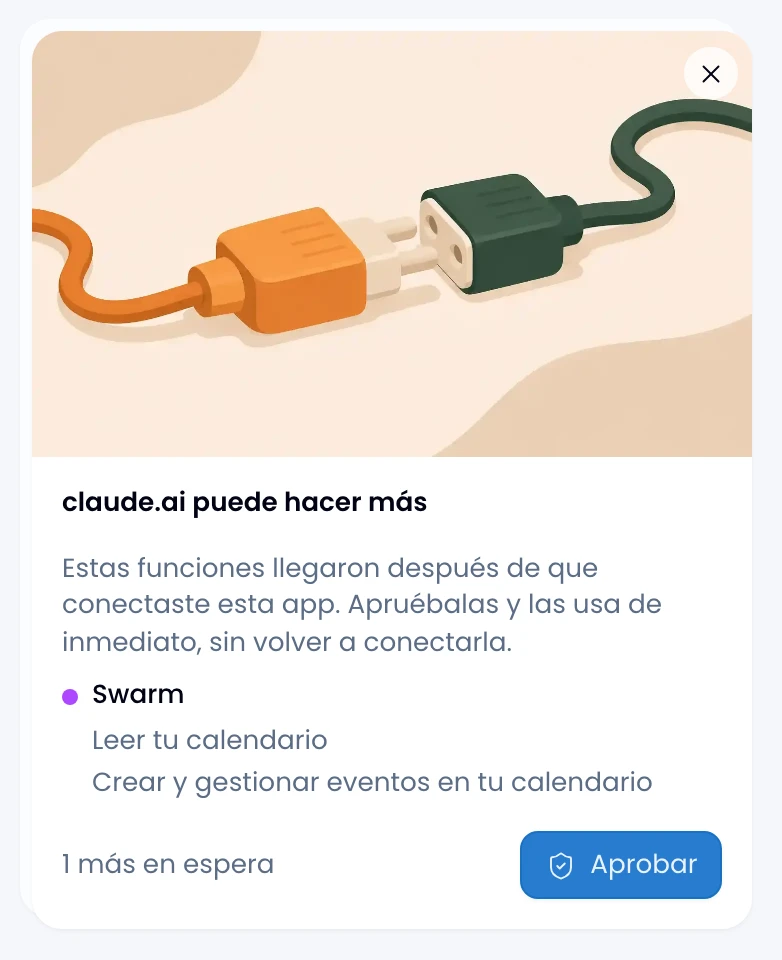
Eel offers you capabilities from the applications that connection already uses, and only as far as you reach today. Lose an access after you authorized it and the app does not gain it here either.
A connection that only reads keeps only reading. Eel offers it new reads and never moves it to the write side on its own. To do that, revoke it and connect it again with the permissions you want it to have.
Answer one connection at a time. Approve one and the next comes forward.
To give it an application it has never touched, revoke it and connect it again.
Revoking
Revoke the connection from Personal → Connected apps and the app stops getting in within a minute, across every workspace it was authorized in. It cannot be undone.
Revoking it from Workspace → Connected apps cuts its access to that workspace only. If that was the connection's only one, it is revoked entirely; if it had others, it keeps working in them.