Groups
Build named teams inside the workspace and stop maintaining audiences person by person.
Who can use this? Workspace owners and admins.
Create a group to say once who belongs to a team and have the other apps use it. A group is a named team: "Support", "Sales", "Accounting".
Rather than adding six people to a Wrap channel one at a time, link the "Support" group to the channel. When somebody joins or leaves the team, edit it here and not in every place they appeared.
If you do not see this screen, ask an admin of your workspace to build or change the team.
The grid
Search by the group's name or by one of its members, so you answer "which teams is Valentina on?" as fast as "where is Support?". Sort the grid A–Z, Z–A or by member count.
A group shows its initials, its name, how many people are in it and the faces of up to five of them, with a "+N" beyond that. An empty group grants no access and receives no work.
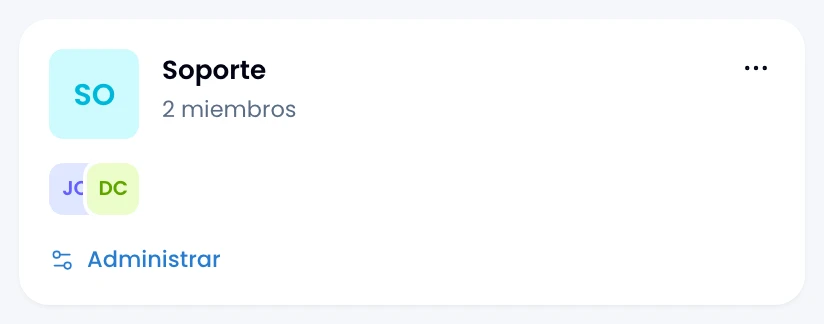
Creating and editing
Click New group, above the grid, to build a team. Use Manage, at the foot of each card, to change one that already exists. Both dialogs ask for the same two things: the name and the people. Names are unique inside the workspace; repeat one and Nest refuses it and tells you.
Assigning from the people list
Open a row's menu in the members table and tick that person's teams in the Groups submenu, without opening each group. The menu stays open, so filing one person into three teams is a single trip.

Editing the group replaces the whole list; ticking a person from their own row touches only that row. When several people are moving others around at the same time, tick from the row.
Deleting
Delete a group from its card's overflow menu, away from Manage. Nest really deletes it, it does not archive it.
Deleting the group does not affect its members. Channels it was assigned to show it as a "deleted group" until somebody takes it off there.